
STEP TWO OF FOUR
Adding a recipe card
One module holds the whole recipe.
Open the post in the Divi Visual Builder and add the Recipe Card module where the recipe should sit, usually after your introduction. Everything on the card comes from the module’s settings, so there is nothing to fill in anywhere else.
STEP ONE
Add the module
Hover over the module above where the card should go, click the plus that appears below it, and search for recipe. Choose Recipe Card. Recipe Jump Buttons, the other module, has its own article.

STEP TWO
Find your way around
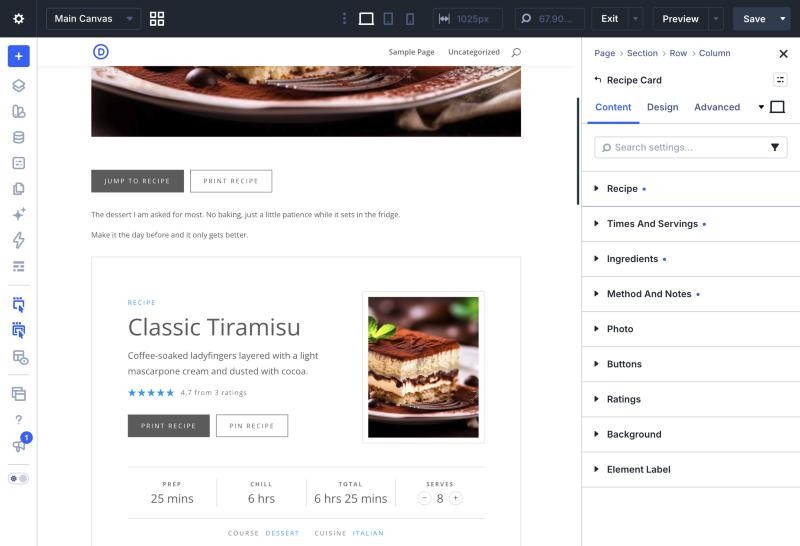
The Content tab is split into groups in the order a recipe is written: Recipe, Times and Servings, Ingredients, Method and Notes, Photo, Buttons and Ratings. Most fields are optional, and an empty one simply does not show on the card.
STEP THREE
Name and describe the recipe
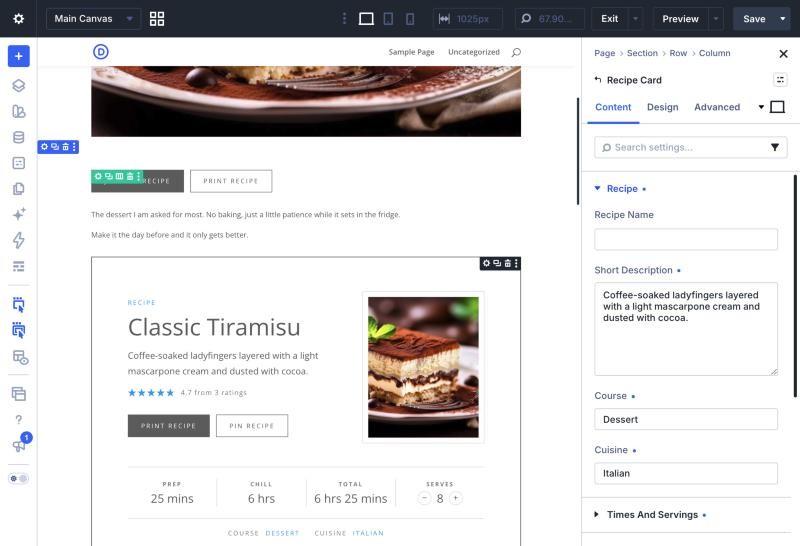
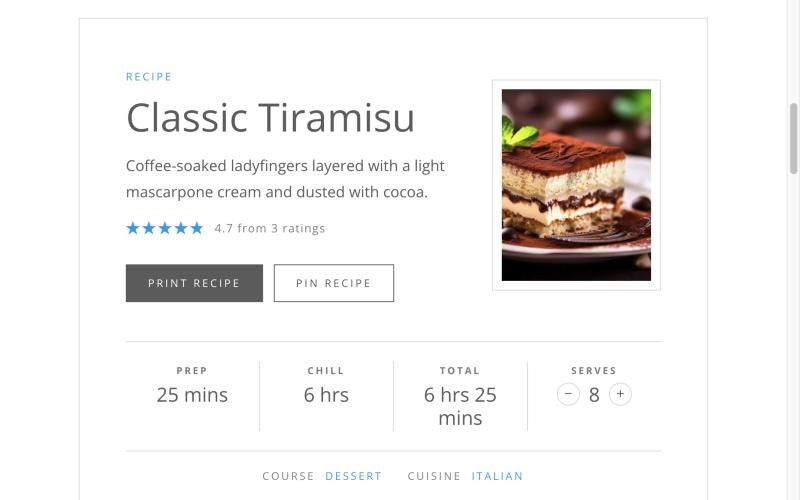
In Recipe, leave Recipe Name empty to use the post title, or type a shorter name for the card. Add a one or two sentence Short Description, and Course and Cuisine if you like. The card in the builder updates as you type.
STEP FOUR
Add the times and servings
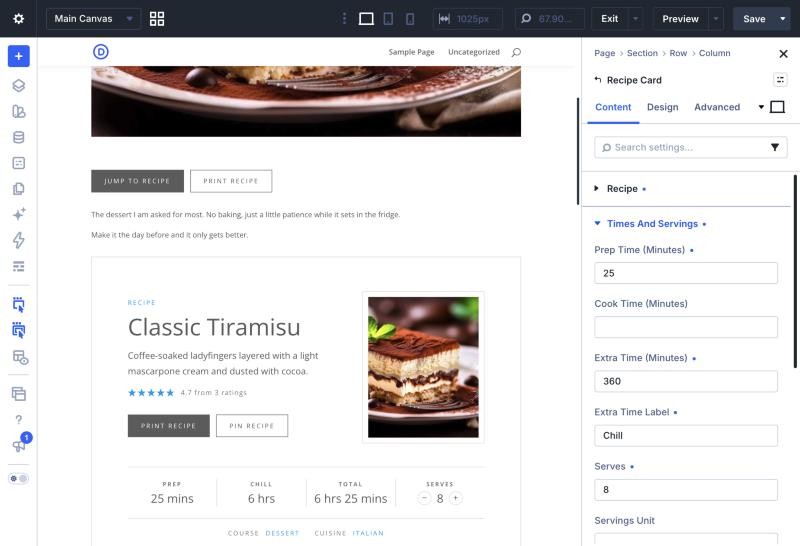
In Times and Servings, enter whole minutes: 25, not 25 mins. The card adds up the total and writes it in hours and minutes. Use Extra Time for resting, rising or chilling, and give it a label such as Chill or Rise.
Serves should be one whole number, such as 8, so readers can scale the recipe. Servings Unit is for things like slices or cookies, and Calories per Serving is optional.
STEP FIVE
Choose the photo
The card uses the post’s featured image unless you choose another in Photo. Set Show Photo to No for a card without one.

STEP SIX
Choose the buttons
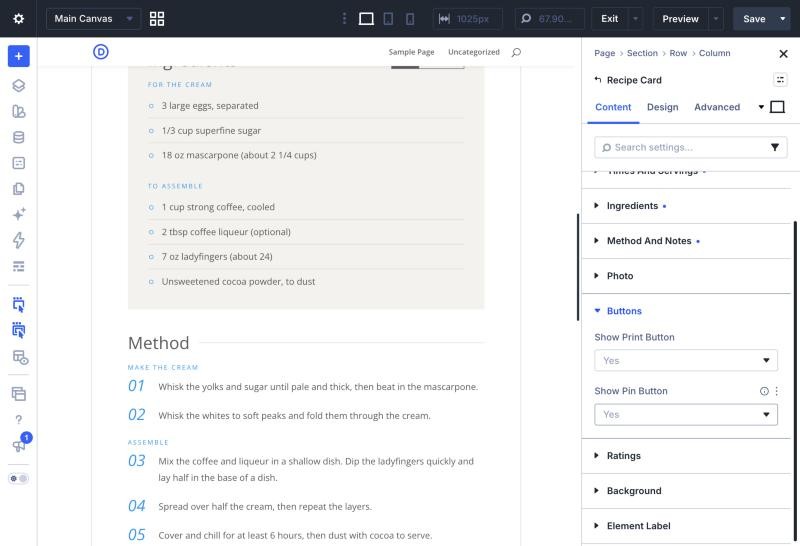
Buttons switches the Print Recipe and Pin Recipe buttons on the card on or off. The Pin button only appears when the card has a photo, because a Pinterest pin is an image.
STEP SEVEN
Save and take a look
Save the post and view it. This is the card your readers see. On a phone the photo moves above the recipe name and the times sit two by two.

GOOD TO KNOW
Before you add more
ONE CARD PER POST
Each post holds one Recipe Card. The Jump button, the print view and Google’s recipe data all use the first card on the page.
IT FOLLOWS YOUR DIVI SETTINGS
The card takes your Divi global colours and fonts, so it matches your site from the start. Styling the card shows how to change them for the card alone.
Next