
STEP FOUR OF FOUR
Styling the card
It already matches your site. Here is how to change it.
Out of the box the card uses your Divi global colours and your heading and body fonts, so a change to your site’s palette carries straight through. To style the card differently, use the module’s Design tab.
STEP ONE
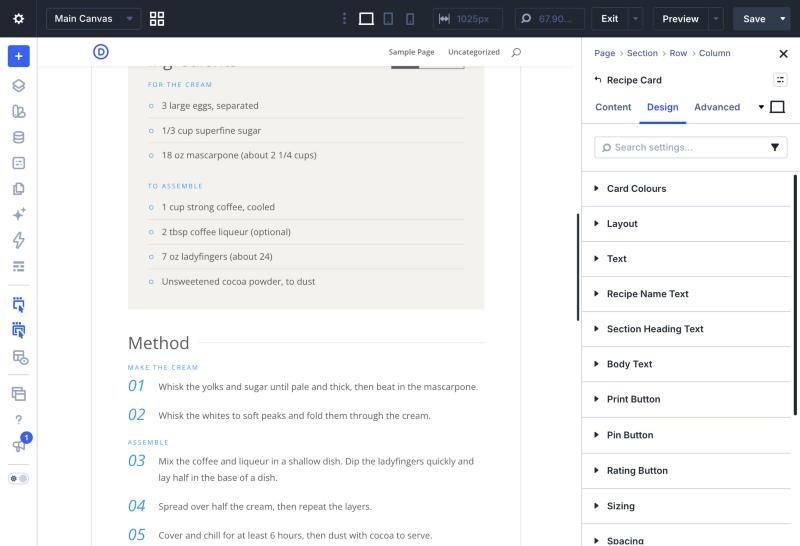
Open the Design tab
Select the Recipe Card and open Design. The card’s own groups come first: Card Colours; Recipe Name Text, Section Heading Text and Body Text; then Print Button, Pin Button and Rating Button. Divi’s usual sizing, spacing, border and animation options follow.
STEP TWO
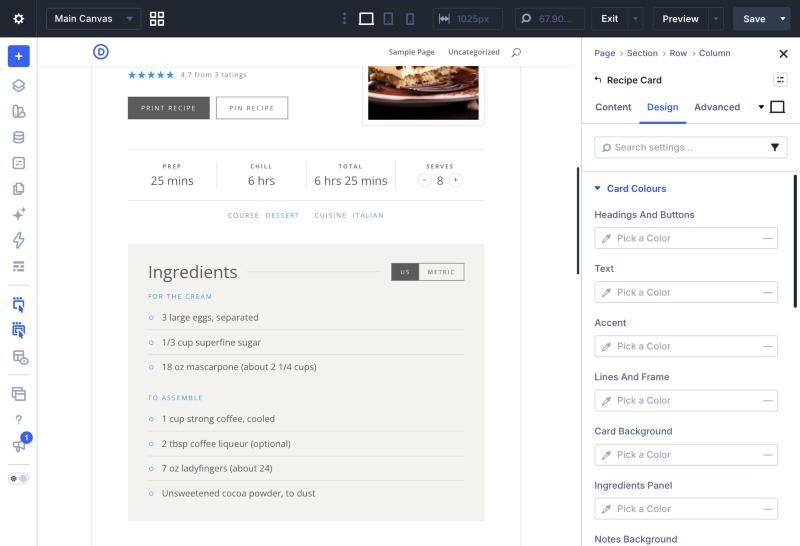
Set the card colours
Card Colours has eight pickers: Headings and Buttons, Text, Accent, Lines and Frame, Card Background, Ingredients Panel, Notes Background and Stars. Leave a picker empty to keep its default. The accent colours the small labels, step numbers and scaled amounts, and the stars too unless you set Stars separately.
STEP THREE
Change the fonts
Recipe Name Text, Section Heading Text and Body Text take any Divi font, size, weight and spacing. Body Text covers the ingredients, the method steps and the short description.
STEP FOUR
Restyle the buttons
Each button group has Divi’s full button options: colours, border, font and hover states. Button icons are off unless you switch on Show Button Icon in that group.
GOOD TO KNOW
Styling more than one card
USE A PRESET
Style one card, save its settings as a Divi preset and make it the default for Recipe Card. Every new card then starts from it, and changing the preset updates them all.
THE PRINTOUT FOLLOWS ALONG
The print view uses the card’s colours and your site’s heading and body fonts, so a printed recipe still looks like yours.
Also in this guide