
STEP THREE OF FOUR
Replacing the placeholder images
Your photographs, at last.
Kiara ships with plain placeholders rather than stock photographs - nothing you have to delete later, and no license to worry about. Every placeholder is labeled with the size it expects, so you know what to prepare before you open Lightroom.
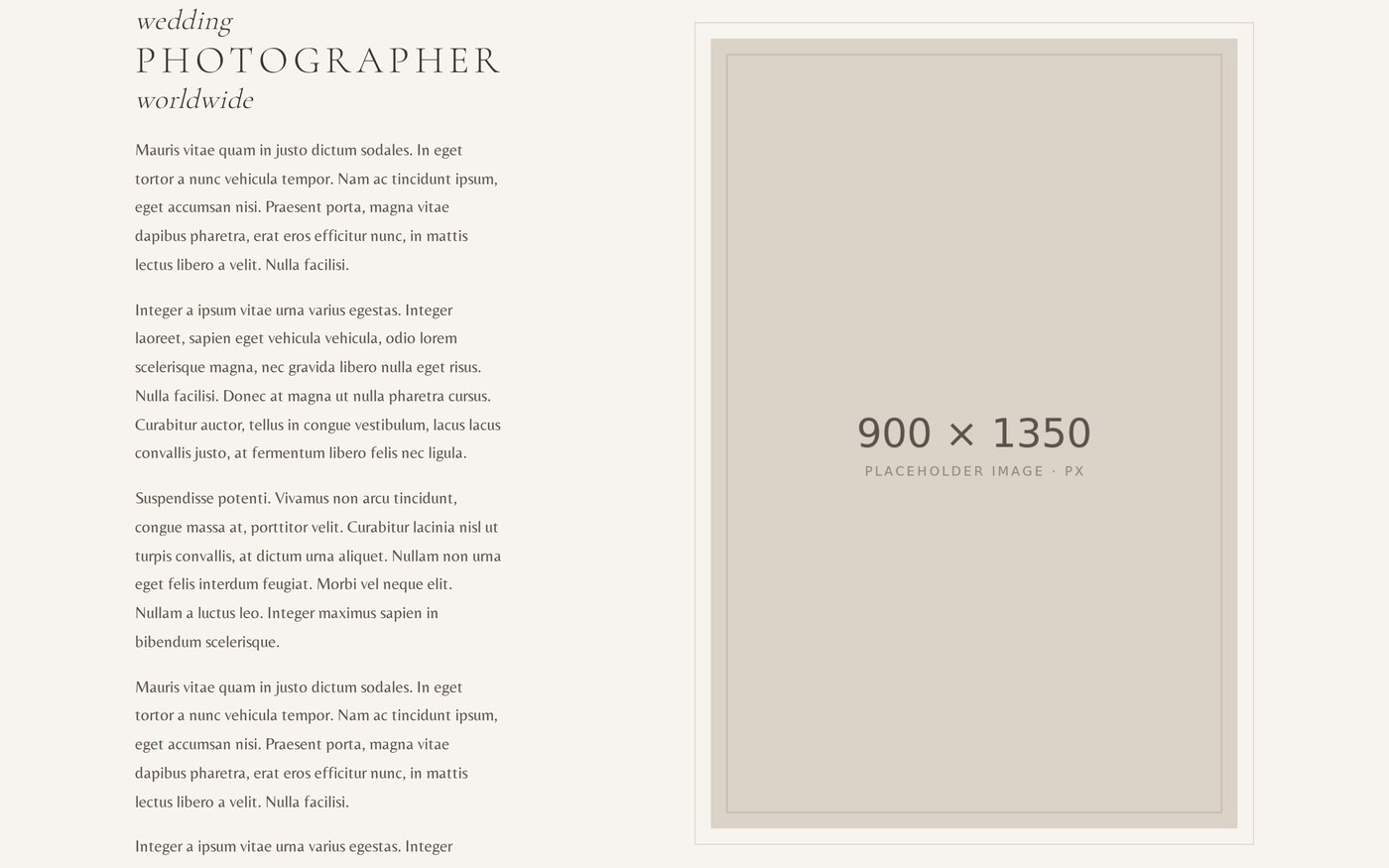
EVERY PLACEHOLDER CARRIES THE SIZE IT EXPECTS
THE SIZES THAT COME UP MOST
What to prepare
Images do not have to match exactly - these are the proportions the layout was designed around. Match the shape and you will be fine.
Home page hero, a background — 1815 x 1058
Page headers, backgrounds — 1920 x 1094
Portrait feature images — 900 x 1350
Landscape feature images — 900 x 600
Journal featured images — 900 x 600
Gallery images — 900 x 600 and 900 x 1350
IN AN IMAGE MODULE
Replacing an image
STEP ONE
Open the page in the Divi Builder
From the WordPress admin bar, choose Enable Visual Builder on the page you want to change.
STEP TWO
Open the module's settings
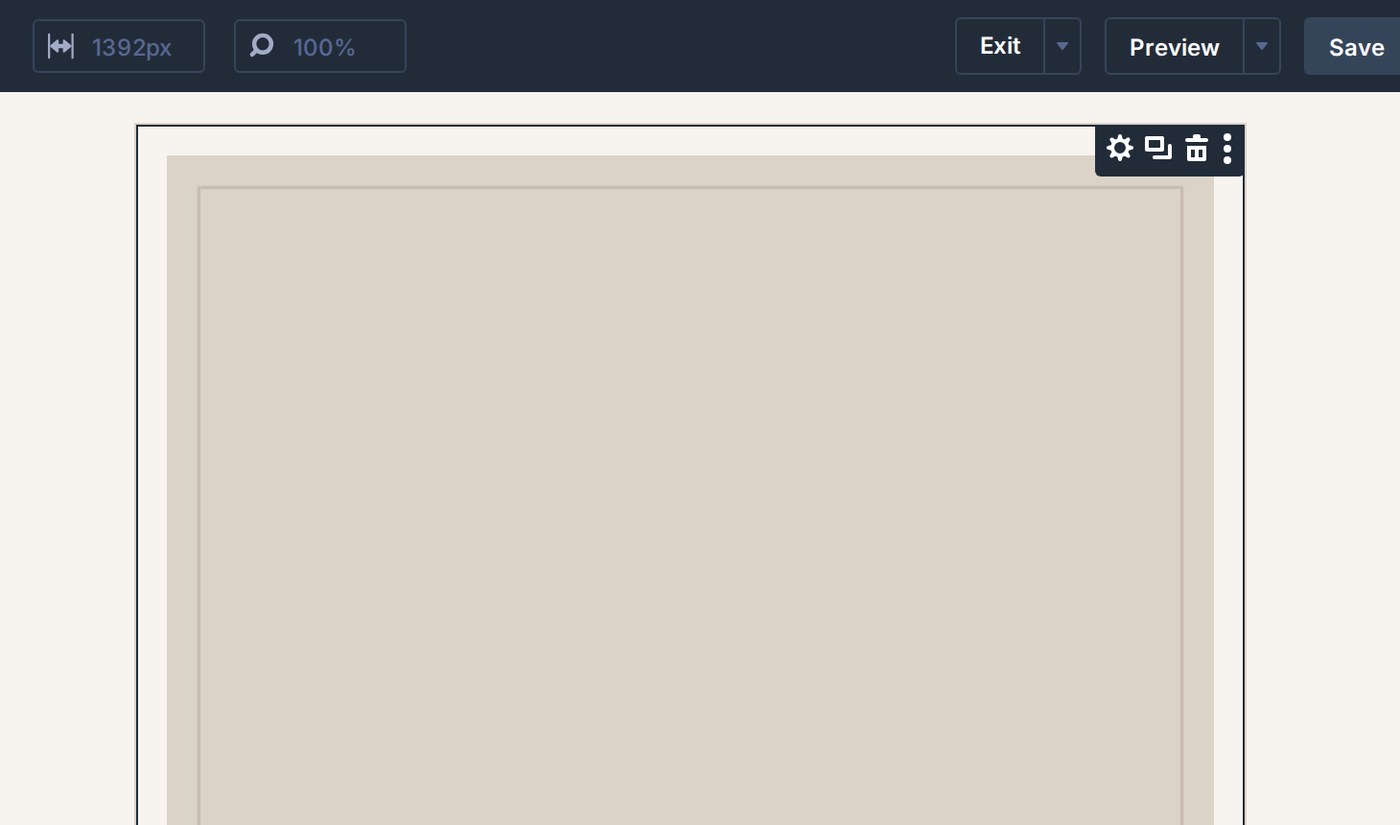
Hover the image. A small toolbar appears above it - click the gear icon.
STEP THREE
Swap the photograph
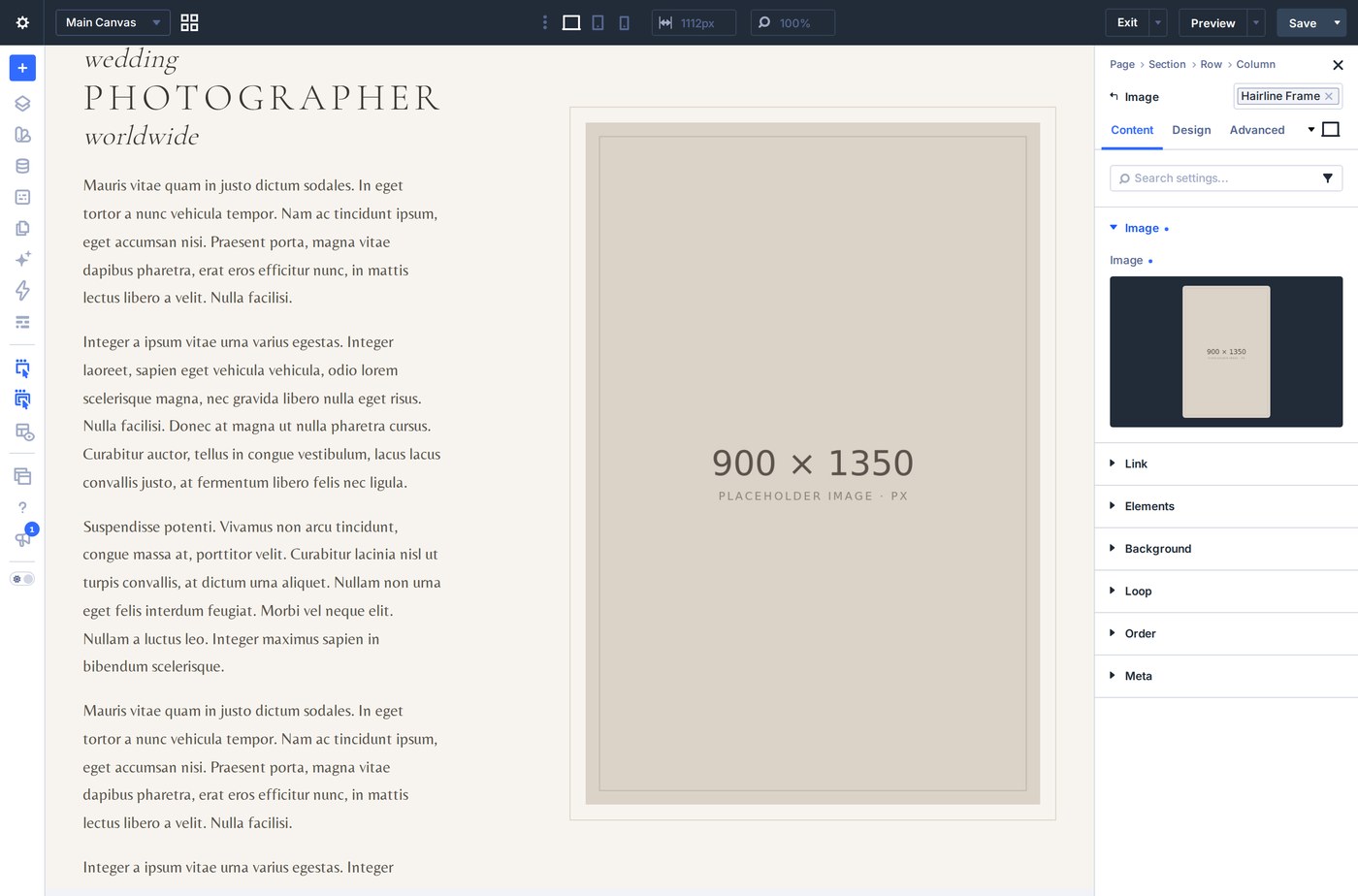
Under Image, click the thumbnail and choose your own photograph. While you are there, write a short alt text describing it - good for search engines, and essential for visitors using a screen reader.
IN A SECTION OR COLUMN
Replacing a background
Some images are backgrounds rather than image modules - the page headers and the carousel slides, for example.
STEP ONE
Open the section or column settings
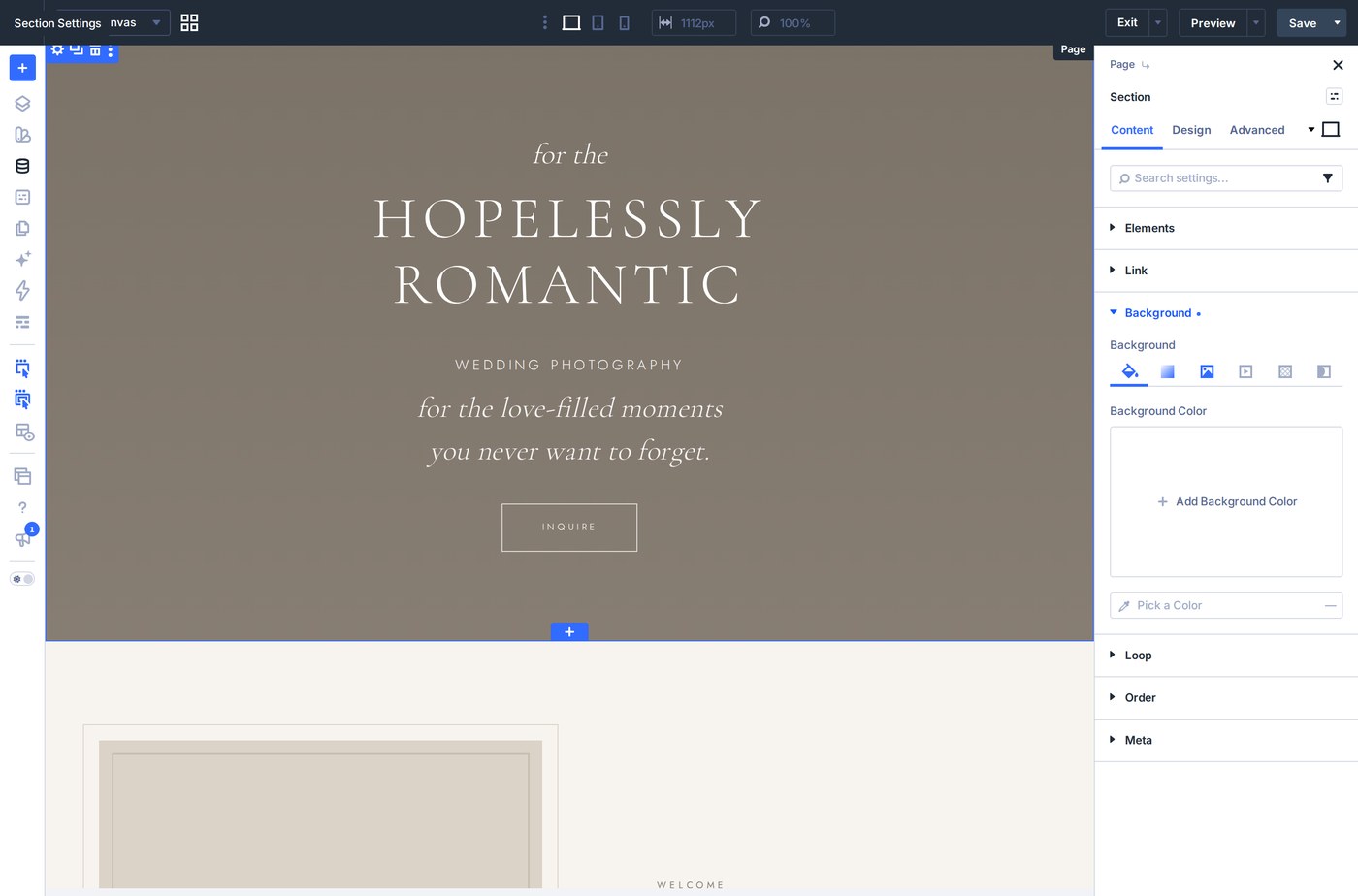
Hover the section and click its gear icon, then expand Background in the panel that opens.
STEP TWO
Choose the image tab
The row of icons chooses the background type: color, gradient, image, video, pattern, mask. Click the image icon, then the thumbnail, and replace it the same way. Leave the position and size settings alone unless you want a different crop.
GALLERIES AND POSTS
The rest of the images
GALLERIES
The grid and masonry galleries use Divi's Gallery module: open its settings, click Update Gallery, and choose your own photographs. The carousel and slider use background images on each slide, so replace those as backgrounds.
JOURNAL POSTS
Featured images are set in the sidebar of the post editor, as normal. They appear on the journal grid, the category archives and at the head of the post.
Next