
STEP ONE OF FOUR
Installing the plugin
Two minutes, and the defaults are ready to use.
Divi 5 must be installed and active before you begin, because ShopCard is a Divi module. Once the plugin is active, a ShopCard menu appears in your admin and its two modules are waiting in the Visual Builder.
STEP ONE
Download the file
Download shopcard.zip from the Marketplace account where you purchased. If it came with a Divi child theme such as Romy, you will find it in that theme’s supplementary files. Keep it zipped.
STEP TWO
Upload and install
In WordPress, go to Plugins › Add Plugin and click Upload Plugin. Choose shopcard.zip, then click Install Now.
STEP THREE
Activate
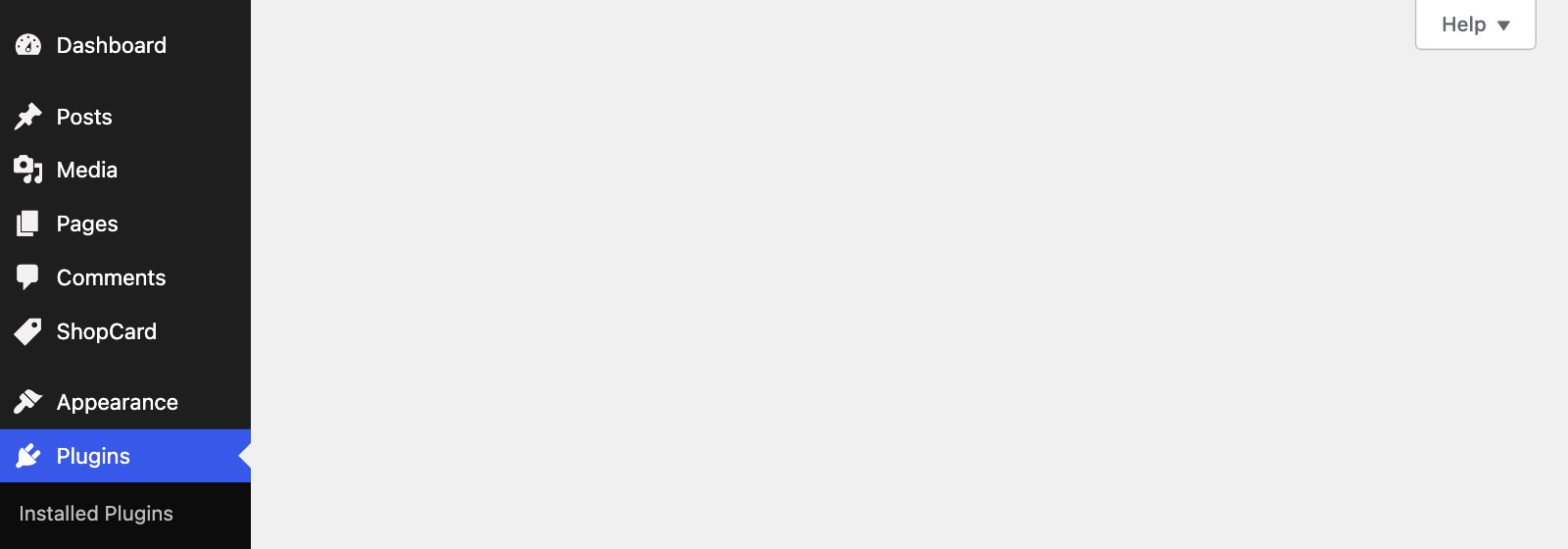
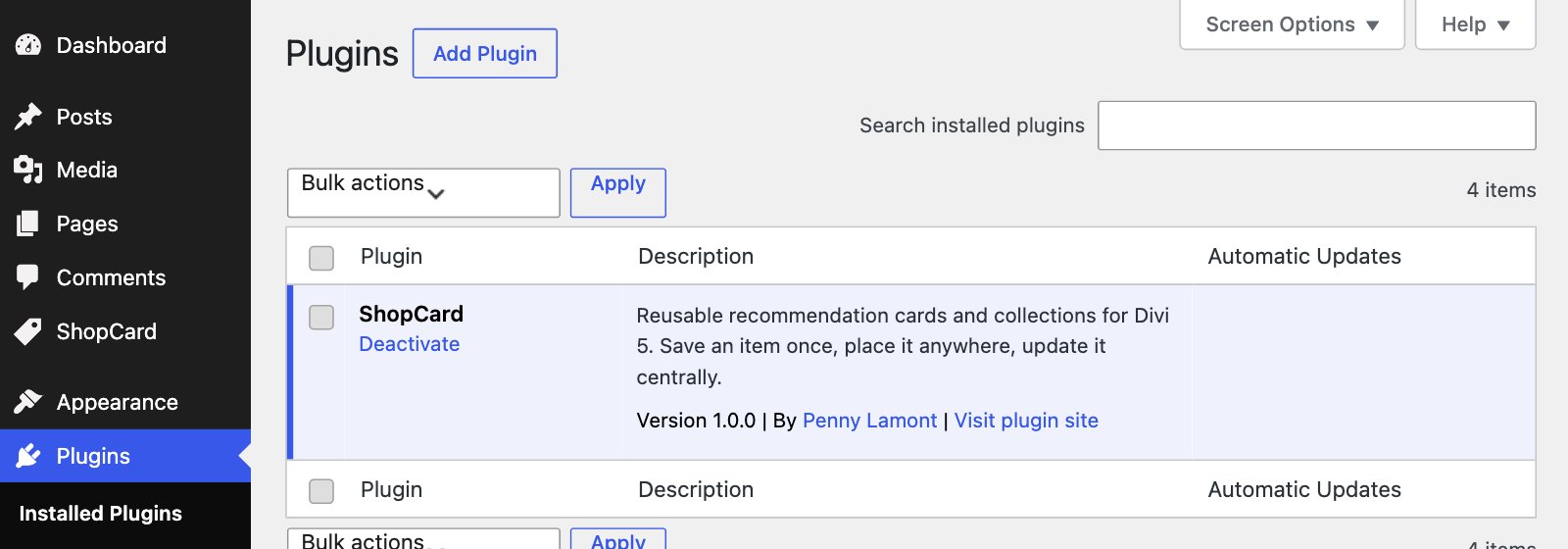
When WordPress says the plugin installed successfully, click Activate Plugin. It now appears in your plugin list as ShopCard, and a ShopCard menu with Items, Collections and Settings appears in the admin.
WHAT TO EXPECT
Nothing changes yet
That is exactly right. A card only shows on a page once you have saved an item and placed one of the modules, so your existing pages are untouched.
UPDATING TO A NEW VERSION
Upload the new zip the same way. When WordPress says the plugin is already installed, choose Replace current with uploaded. Your items, collections and settings live in your database, so nothing is lost.
SHOPCARD NEEDS DIVI 5
The modules are built for the Divi 5 Visual Builder. On Divi 4 they will not appear - although the shortcode still works anywhere.
Next