
STEP TWO OF FOUR
Adding an item
One product, saved once, used as often as you like.
An item is one product: where it links, who sells it, a line about it, a price and a photo. You save it once under ShopCard › Items, and every card that shows it - on any page, in any collection - reads from it.
STEP ONE
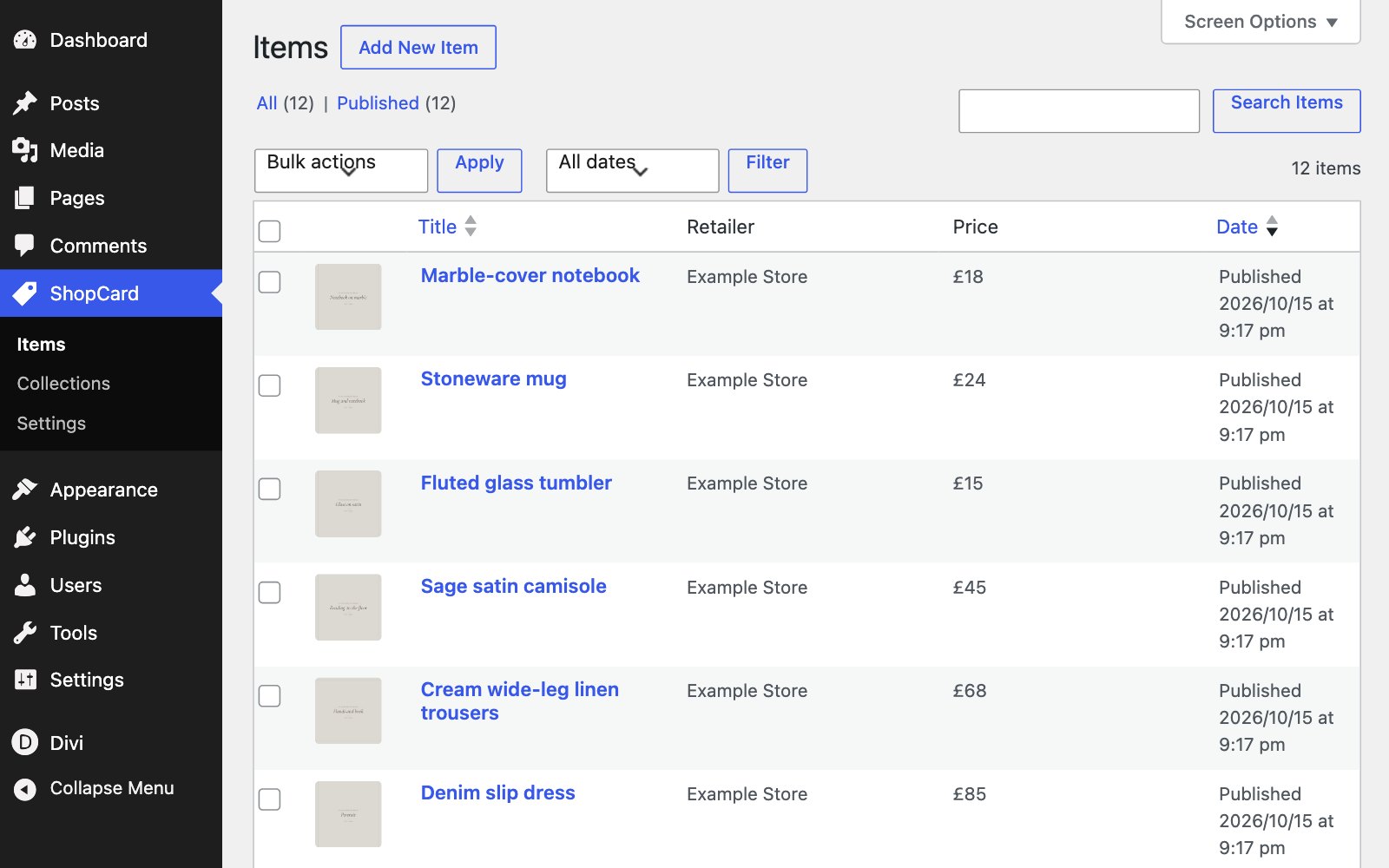
Start a new item
Go to ShopCard › Items and click Add New Item. Give it the product’s name as the title: that is the name on the card.
STEP TWO
Add the link and the retailer
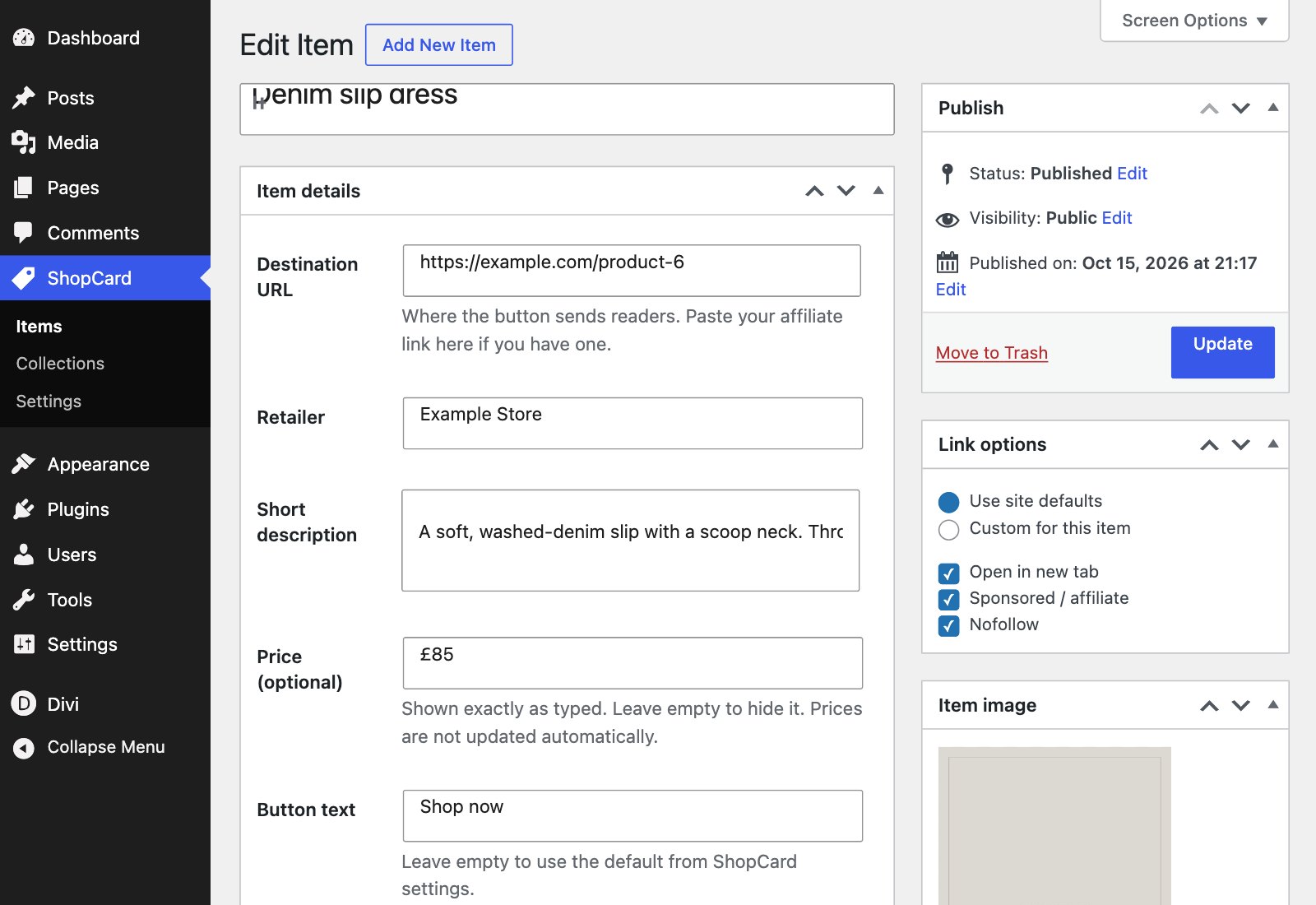
Destination URL is where the button sends readers - paste your affiliate link here if you have one. Retailer is the shop’s name, shown in small capitals above the product name.
STEP THREE
Describe it
Short description takes a line or two on why you recommend it. Price is optional and shown exactly as you type it - £85, or from $40 - and it never updates on its own, so leave it empty if it changes often.
STEP FOUR
Button text
Leave Button text empty to use the default from ShopCard › Settings, which is Shop now, or give this item wording of its own, such as See it.
STEP FIVE
Choose the photo
Set the Item image in the box on the right. Cards show it as an upright 4:5, so keep the product in the middle of the frame. Around 1000 pixels on the longer side is plenty.
STEP SIX
Check the link options
Link options uses the site defaults - open in a new tab, sponsored and nofollow - unless you choose Custom for this item. Links, settings and the disclosure explains each one. Then click Publish.
STEP SEVEN
Place it and take a look
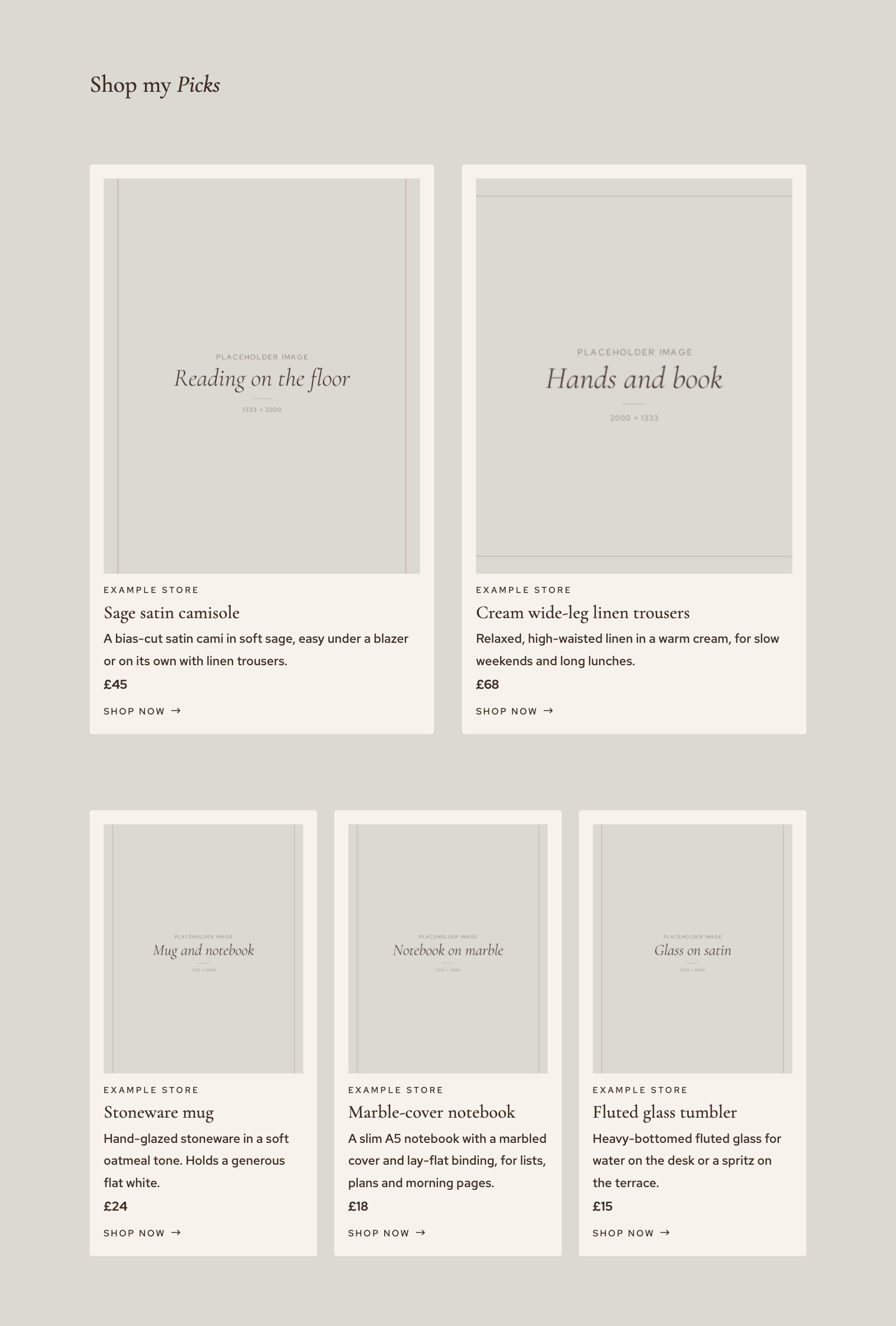
Place the item on a page with the ShopCard Item module, or add it to a collection, and view the page. This is the card your readers see. On a phone, collections drop to a single column.
GOOD TO KNOW
Before you add more
ONE ITEM, MANY PLACES
Use the same item on as many pages and in as many collections as you like. Edit it once and every card follows, so a new link or a sold-out product is a single change.
EMPTY FIELDS STAY HIDDEN
Leave out the retailer, the description or the price and the card simply goes without it. A module can also hide any of them for one placement, as Placing cards in Divi shows.
Next