
HELP
Troubleshooting
The handful of things that actually go wrong.
Most Romy problems are one of the following, and a good number of them are fixed by clearing Divi’s cached stylesheets. Start there before anything else.
FIRST, ALWAYS
Clear the static CSS cache
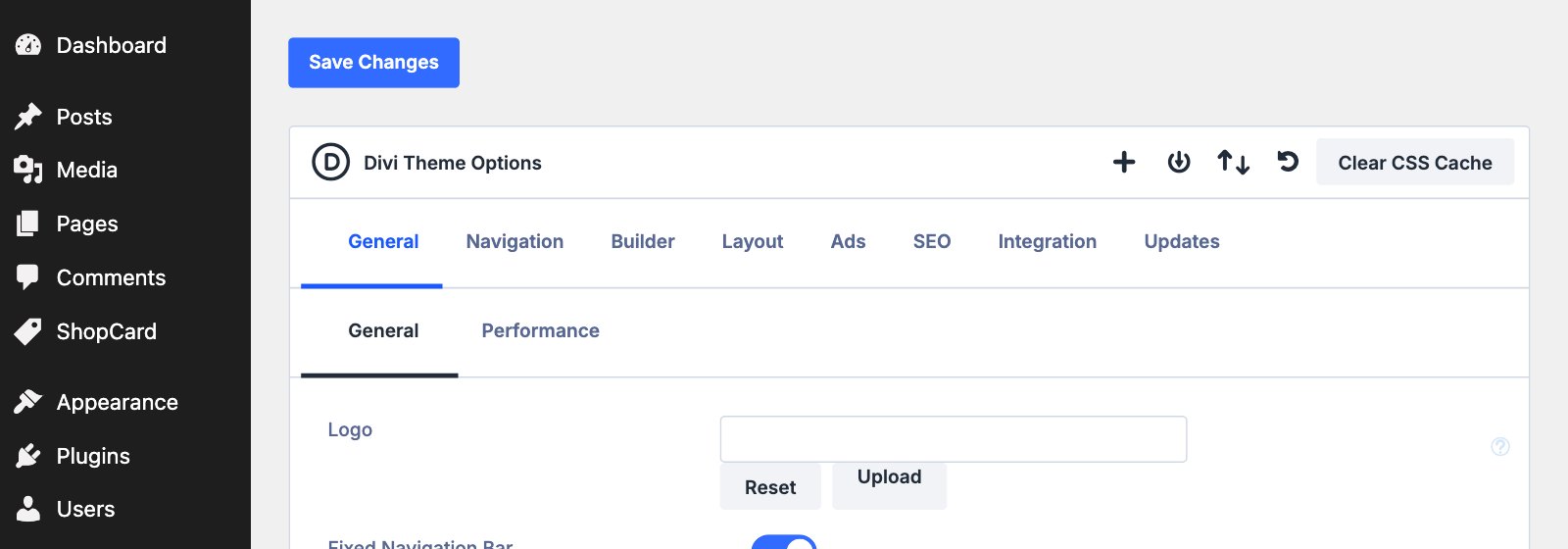
Divi compiles your design into cached stylesheet files. After any change to the palette, the fonts or a preset, those files can lag behind - so a change you have definitely made refuses to appear. Go to Divi › Theme Options and click Clear CSS Cache at the top right of the page, then reload your site with a hard refresh.
IF YOU USE A CACHING PLUGIN
Clear its cache too, and any cache your host runs. A page cache can keep serving yesterday’s page long after Divi has caught up.
PROBLEM
The product cards are missing
Home, About or Shop My Picks show gaps where the cards should be. The ShopCard plugin is not active. Install shopcard.zip from your download under Plugins › Add New Plugin › Upload Plugin and activate it. If the cards are still missing after that, open a support ticket rather than importing the demo again.
PROBLEM
A photo looks soft
Each photo is cropped to its shape in the browser from the file you uploaded. If one looks soft, it was almost certainly uploaded smaller than the space it fills. Upload a version at least 1200 pixels on its longer side - 1600 for the home hero and Featured Story - and swap it in.
PROBLEM
A photo has lost its shape
The crops are set on each Image module under Design › Sizing. If you replaced the module rather than the picture inside it, the crop went with it. Set the aspect ratio or height again, with the image set to cover; Replacing the images lists the shape of every photo.
PROBLEM
A header menu is empty or shows the wrong links
Each Menu module in the header names the menu it shows. If a menu was deleted, renamed or rebuilt, open the header layout under Divi › Theme Builder, click into the Menu module and choose the menu again in its settings: Main menu header for the main bar, Top bar categories for the top bar.
PROBLEM
The search icon or the Journal dropdown has moved
Both are positioned by the child theme through the class romy-main-menu on the main Menu module, under Advanced › Attributes. If the class is missing, add it back. The search icon’s position also depends on the header’s column widths, so if you change those, see the comment in the child theme’s style.css.
PROBLEM
Journal cards are uneven heights
The Journal, category and search grids keep their cards an equal height through the class romy-blog-grid on the Blog module, under Advanced › Attributes. Add it back to any Blog module that has lost it, or copy an existing grid rather than starting from a fresh module.
PROBLEM
A page shows Divi’s plain header and footer
That page is matched by a Theme Builder template whose header and footer layouts are empty. Divi never merges templates, so a blank slot means Divi’s stock output rather than the site’s. Open the template and name the header and footer layouts explicitly.
PROBLEM
The fonts look wrong
Cormorant Garamond, Red Hat Text and Jost are loaded from Google Fonts. If your site blocks external fonts - some privacy plugins and some European hosting setups do - they will fall back to a system font. Either allow the Google Fonts host, or use Divi’s option to host the fonts locally.
STILL STUCK
What to send with a ticket
A link to the page, a screenshot of what you are seeing, your Divi version, and whether it happens on the front end, in the Visual Builder, or both. That is usually enough to answer without a second exchange.
SHOPCARD QUESTIONS
Problems with the cards themselves - links, images, collections, the disclosure, the shortcode - are covered in the ShopCard guide’s own troubleshooting article. Click here to view.
Next