
COLLECTIONS
Collections
Group your picks, in the order you choose.
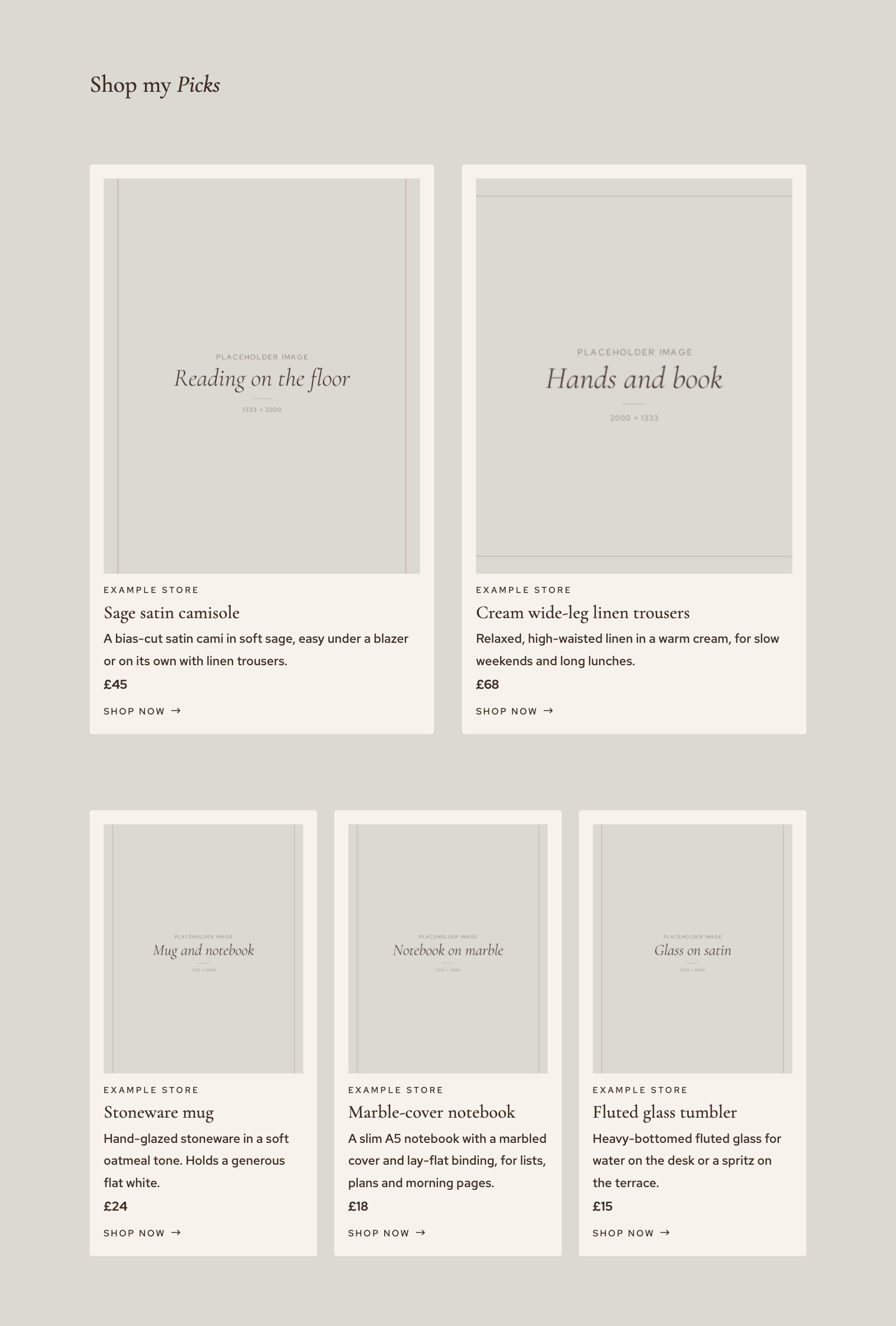
A collection is an ordered set of items - a gift guide, a capsule wardrobe, everything on your desk. Place it with the ShopCard Collection module and it shows as a grid. Change the collection and every page showing it follows.
STEP ONE
Create the collection
Go to ShopCard › Collections and click Add New Collection. Give it a name you will recognise, because that is how you will find it in the module’s list.
STEP TWO
Add the items
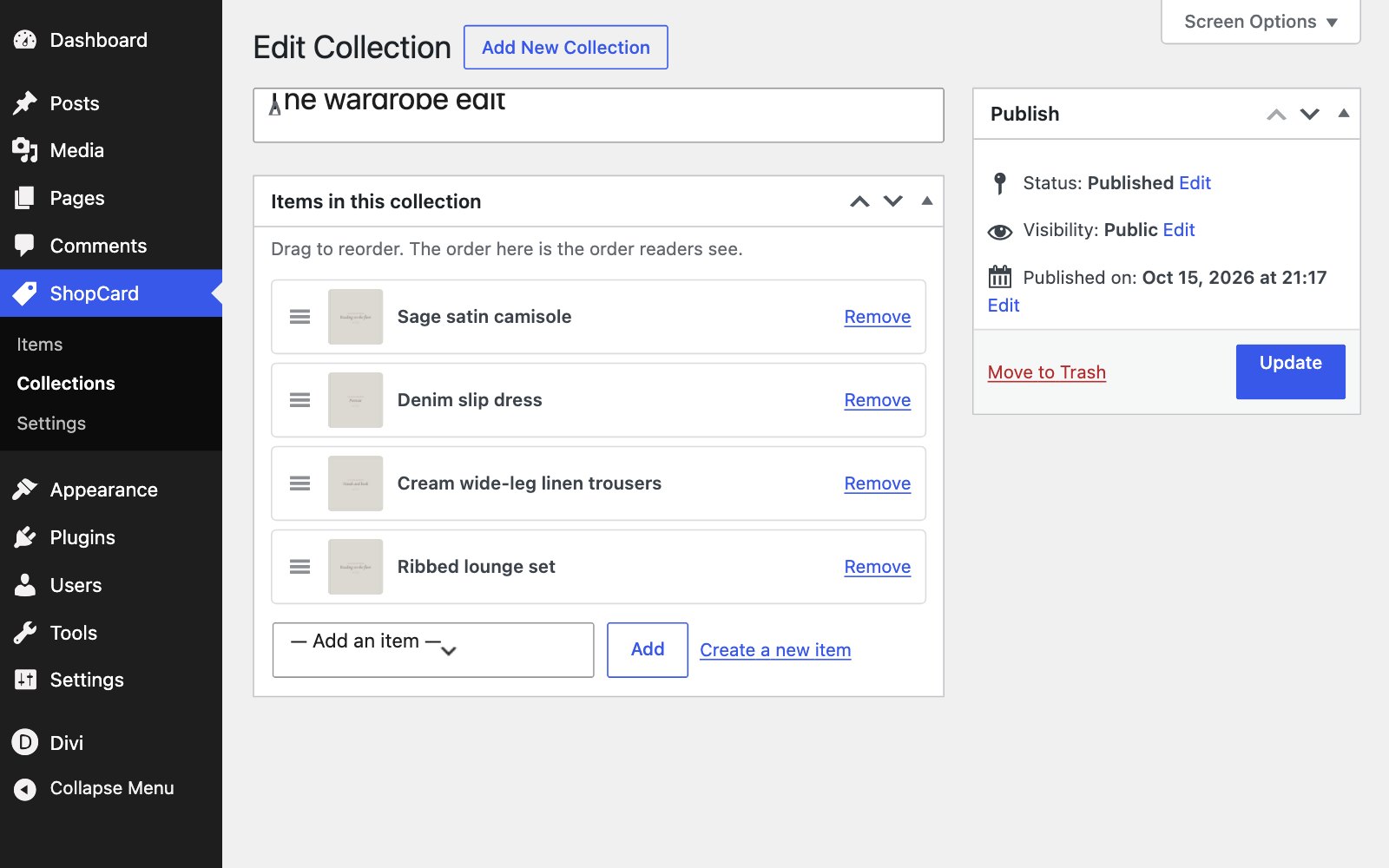
Under Items in this collection, choose an item from the list and click Add. If the product is not there yet, Create a new item opens the item screen so you can save it first.
STEP THREE
Put them in order
Drag the items up and down: the order here is the order readers see. Remove takes an item out of this collection without deleting it. Click Publish or Update to save.
STEP FOUR
Place it on a page
Add the ShopCard Collection module and choose the collection. Set the number of columns under Design › Layout, as Placing cards in Divi explains, and switch any part of the cards off under Elements.
GOOD TO KNOW
Reusing items
ONE ITEM, SEVERAL COLLECTIONS
An item can sit in any number of collections. Edit it once and it changes in all of them - a new link, a new photo or a new price lands everywhere at once.
Also in this guide