
STEP THREE OF FOUR
Replacing the images
Your own photographs, in the same frames.
Romy arrives with labelled placeholders where every photograph goes, each one marked with its name and size, so you can see at a glance what belongs where. Your own pictures are what make it your blog.
THE SHAPES
Where each photo goes, and its shape
Every photo sits in a fixed crop, set on its module under Design › Sizing, so a picture of any shape keeps the page’s proportions. Match the shape and you choose what gets cropped; ignore it and the theme crops from the centre for you. Around 1200 to 1600 pixels on the longer side is plenty for all of them.
SHAPES AT A GLANCE
Home hero — Upright 4:5 - the photo beside “A lifestyle online journal by Romy”.
Post photos — The featured image of each post. It shows as an upright 3:4 in Latest Journal on the home page, 4:5 under “You might also like” and 3:2 landscape at the top of the post, so keep the subject in the middle.
Hey, I’m Romy — An upright 4:5 on the home page, and a small square in the author box at the foot of every post. A portrait of you works for both.
Featured Story — 3:2 landscape - the large photo in the home page’s Featured Story.
About — The three-photo collage, the staggered pair, Behind the blog, This or That and the four category tiles. Each has a fixed height and crops from the centre, so portrait or landscape both work.
Shop My Picks — The tall Currently loving photo on the page itself. The product photos belong to the ShopCard items, and show as an upright 4:5.
Footer — A wide landscape behind the newsletter band, and six photos in the Follow along strip - although we suggest you swap the strip for the Instagram module built into Divi 5.
STEP ONE
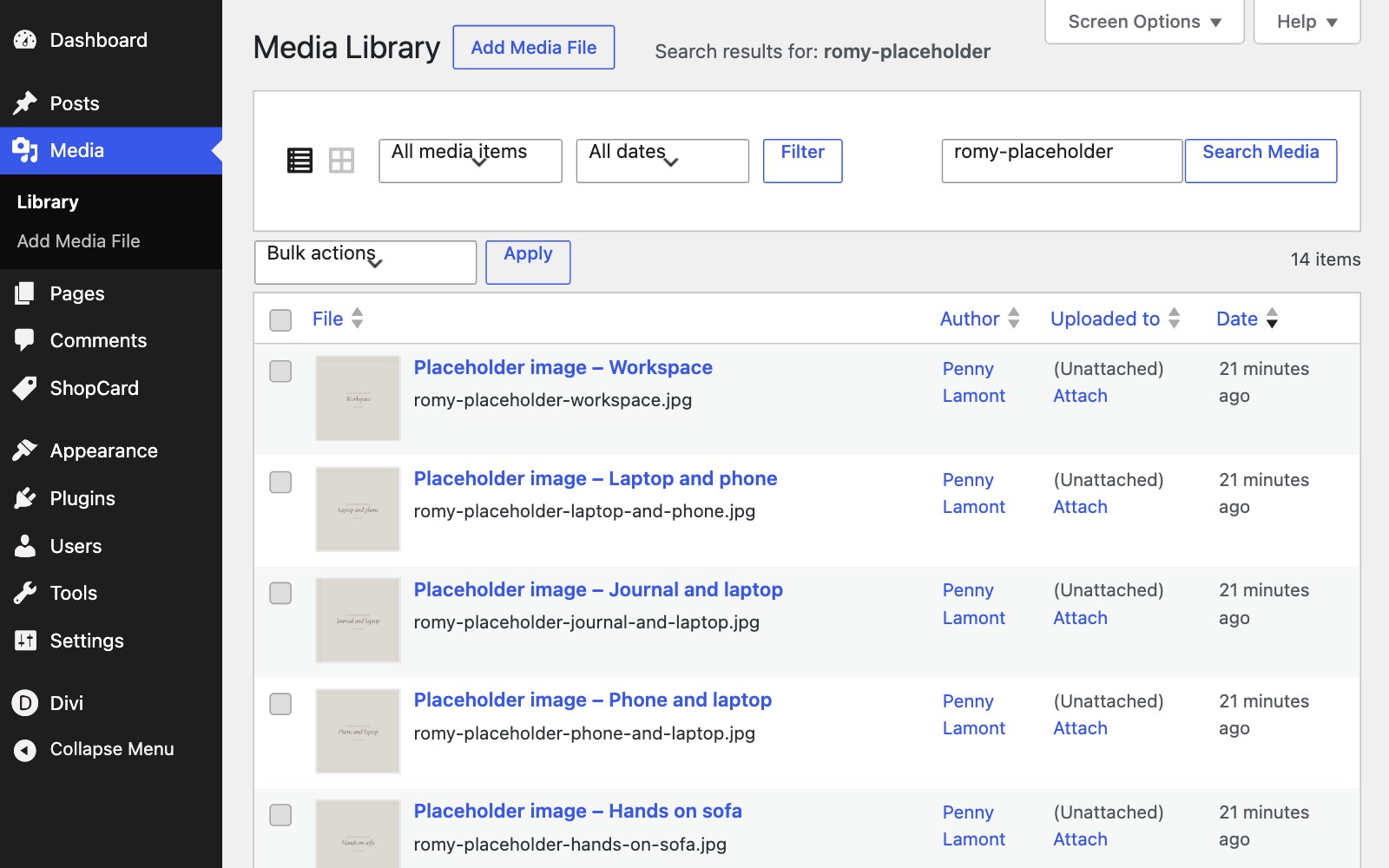
Find the placeholders
STEP TWO
Open the page in the builder
Open the page, click Enable Visual Builder, and hover the image you want to change. A small toolbar appears; click the cog to open its settings.
STEP THREE
Swap the file
In the module settings, click the image and choose Upload an image or pick one from the Media Library. Divi 5 keeps alt text in the media window rather than in the module, so set it there while you are choosing the file - describe your photograph, not the placeholder.
Change the picture inside the module rather than deleting the module and adding a new one: the module carries the crop, the frame and the spacing.
STEP FOUR
A placeholder appears more than once
The demo reuses a few placeholders - the Home hero placeholder also stands in on About and Shop My Picks, for example - so replacing a file in one place does not change the others. Swap each one where it sits, or use Replace in the Media Library if your site has a media-replace plugin.
STEP FIVE
The ones that are not image modules
A few photos are not Image modules. The flat lay behind the newsletter band is the footer section’s background: change it in that section’s Background tab, under Divi › Theme Builder. The photo beside the contact form is its column’s background, on the Contact page. The photo at the top of each post is the post’s Featured image. And the product photos are each ShopCard item’s Item image, under ShopCard › Items.
WORTH KNOWING
Before you upload
KEEP THEM SMALL
A post with six photos straight off a phone at 4 MB each will feel slow however well it is built, and lifestyle blogs are read on phones. Export at 1200 to 1600 pixels with the quality around 75, and keep each file under 300 KB.
THE CALM IS IN THE PHOTOGRAPHS
Romy’s palette is ivory, warm stone and deep brown, with denim blue as the accent. Soft, natural light and neutral tones sit comfortably inside it; a cold, high-contrast photograph will fight the page. If yours look out of place, a small warm tint usually settles them.
Next