
REFERENCE
Recipes and the Recipe Card plugin
How a Nicole recipe is put together.
Each recipe in Nicole is an ordinary WordPress post. The Theme Builder supplies the title, the photo, the comments and the related recipes around it; the post itself holds your story and the recipe card. The card comes from the Recipe Card plugin, which is included with Nicole.
FIRST
Install the Recipe Card plugin
Your download includes recipe-card-for-divi.zip alongside the theme. Install it the usual way, under Plugins › Add New Plugin › Upload Plugin, and activate it. It picks up Nicole’s colours on its own - the child theme hands it the palette - so there is nothing to set up.
WITHOUT THE PLUGIN
The demo recipes still open, with their story and placeholders, but the recipe card and the Jump to Recipe buttons are blank. Install the plugin and they appear.
THE CARD HAS ITS OWN GUIDE
Everything about filling in the card - ingredients, US and metric amounts, servings, the method, star ratings and printing - is in Recipe Card - Getting Started. This article covers how the card sits inside a Nicole recipe.
ANATOMY OF A RECIPE
Top to bottom
A DEMO RECIPE, IN ORDER
Title and photo — From the Single Recipe template: the recipe name, the date and category, and the featured image in a 3:2 frame.
Disclosure — A one-line affiliate disclosure, also from the template.
Jump buttons — Jump to Recipe and Print Recipe, so a reader in a hurry can skip the story. This is the plugin’s Recipe Jump Buttons module.
The story — Text modules and two photos. The photos carry the class nicole-post-photo, which gives them the same 3:2 crop as the photo at the top.
Ad slot — The in-content ad slot, after the opening paragraphs.
What you’ll need — Three pieces of equipment, linked to Kitchen Favourites. Earning from your site covers it.
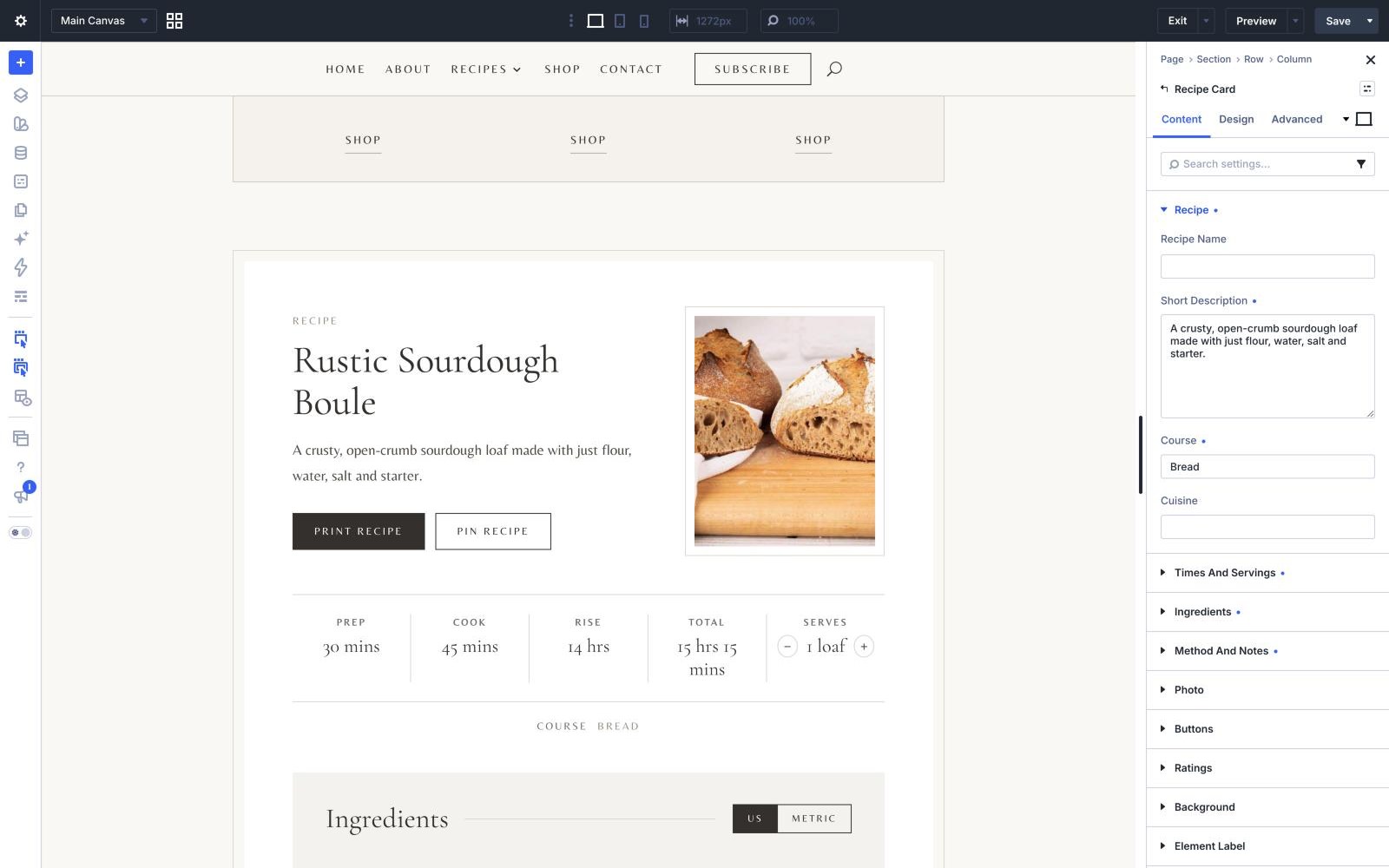
The recipe card — The plugin’s Recipe Card module: times, servings, ingredients, method, notes, ratings and the Print and Pin buttons.
After the recipe — From the template again: a second ad slot, the comments with star ratings, and three more recipes under “You might also like”.
WRITING A RECIPE
Start from a demo recipe
The quickest way to a new recipe that matches the rest is to copy the layout of a demo recipe. Open one in the Visual Builder, and in the page settings save the whole layout to your Divi Library. Then start a new post, open the Visual Builder, choose that saved layout, and replace the words, photos and card.
Write in the post’s own content only. The title, the photo at the top and everything below the card come from the template, so there is no need to add them.
WRITING A RECIPE
The featured image does three jobs
Set a featured image on every recipe. It is the photo at the top of the recipe, the picture in every recipe grid, and the card’s photo when you leave the card’s own photo empty. The top of the recipe crops it to 3:2 and the grids crop it to an upright 4:5, so keep the dish in the middle of the frame. Around 1200 pixels wide is plenty.
WRITING A RECIPE
Categories
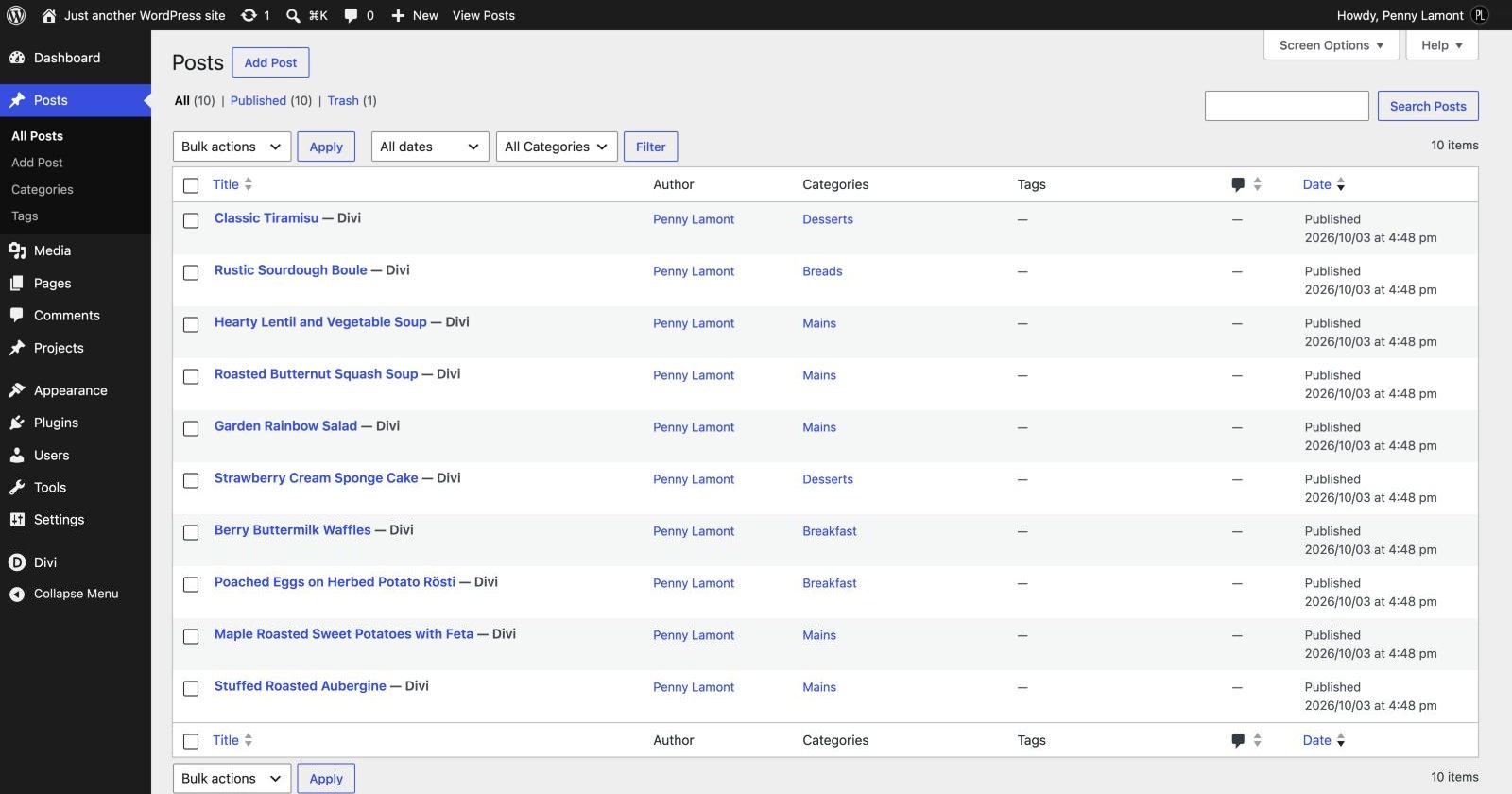
The demo has four: Breakfast, Mains, Desserts and Breads, and the import adds them for you. Give every recipe one of them. Any post you forget to categorise lands in WordPress’s default category, Uncategorized; rename it under Posts › Categories to something that suits a food blog, or simply keep every recipe categorised.
To add a category, create it under Posts › Categories, add it to the Recipes dropdown under Appearance › Menus, add a link to the Recipes column in the footer, then duplicate one of the bands on the Recipe Index page and point its Blog module and button at the new category.
WRITING A RECIPE
Ratings come from comments
Readers rate a recipe by choosing stars when they leave a comment, and the average appears on the card. Comments are open on the demo recipes. Keep them open on new ones, or the card has no way to collect ratings.
Next