SETTINGS
Links, settings and the disclosure
Set your defaults once; change them for a single item when you need to.
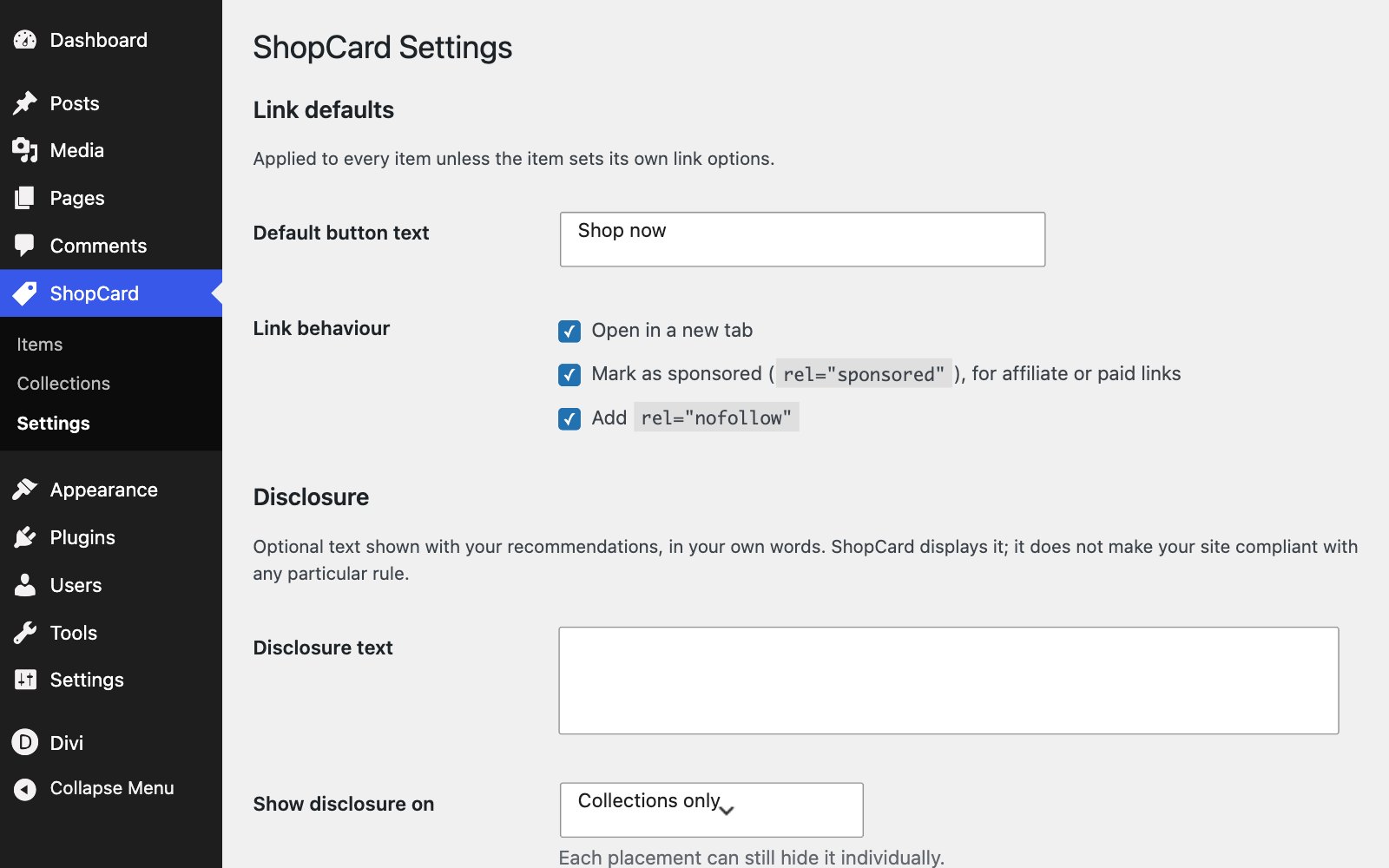
ShopCard › Settings holds the defaults every card follows: the button wording, how product links behave, and the affiliate disclosure. An item can override the link behaviour for itself.
STEP ONE
Default button text
The button reads Shop now unless you change it here. An item with button text of its own uses that instead.
STEP TWO
How links behave
Open in new tab, Mark as sponsored and Add nofollow are all on by default. Sponsored is what Google asks for on affiliate and paid links; nofollow covers older guidance and other search engines. Keep both on for affiliate links.
STEP THREE
The disclosure
Type your disclosure - for example, “Some links are affiliate links, so I may earn a small commission at no extra cost to you” - and choose where ShopCard shows it: on collections, on every card, or nowhere. A module can hide it for one placement under Elements.
GOOD TO KNOW
Keeping it honest
LINK OPTIONS FOR ONE ITEM
In an item’s Link options box, choose Custom for this item to change new tab, sponsored and nofollow for that product alone - for a link to your own shop, say, which is not an affiliate link.
THE DISCLOSURE IS STILL YOURS
ShopCard’s disclosure helps, but advertising rules in the UK, the EU and the US expect readers to see it before they click. Keep a clear line near the top of any page or post with affiliate links, as Romy does on Shop My Picks.
Also in this guide