
REFERENCE
Theme Builder templates
The frame around every page and post.
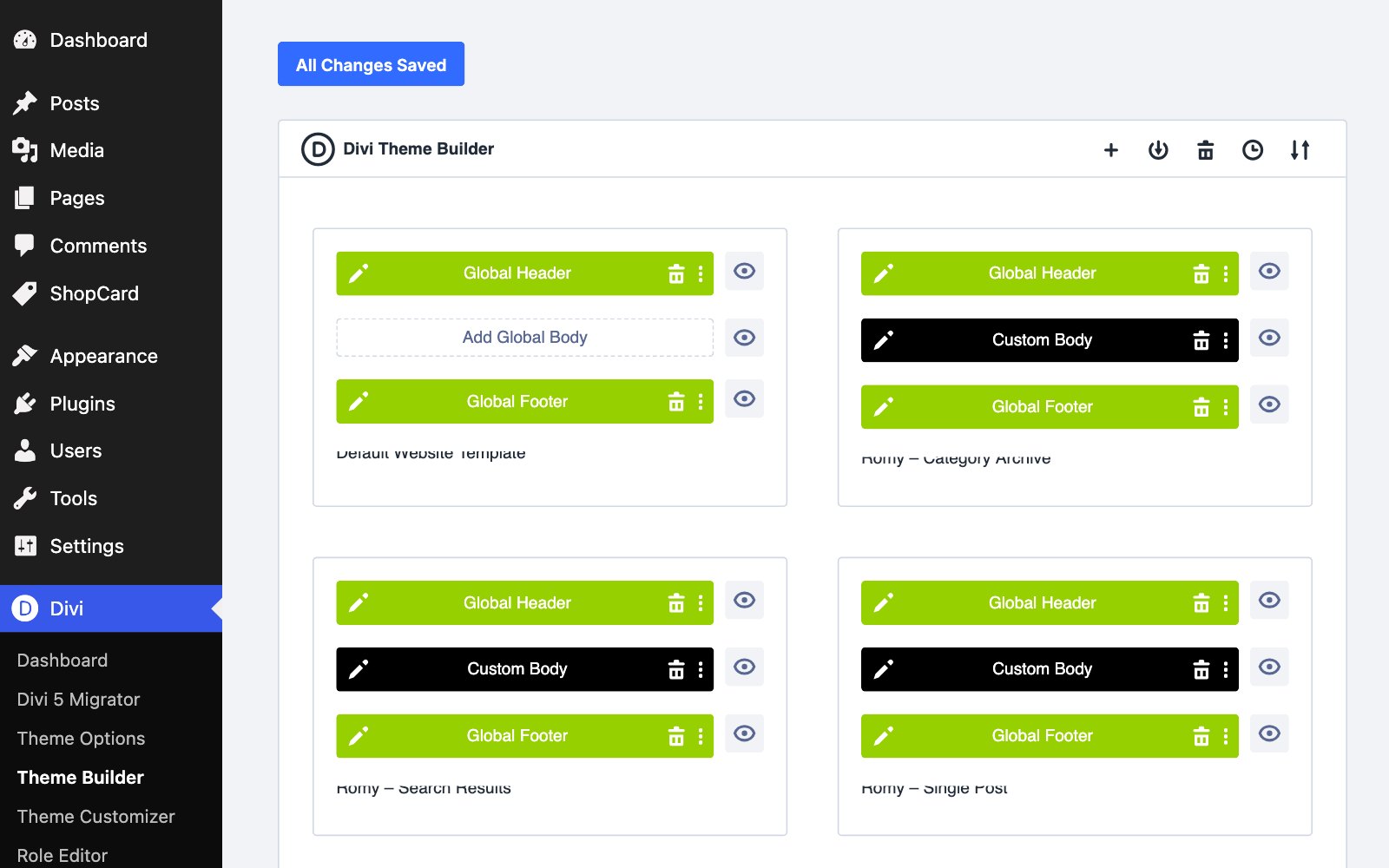
The header, the footers, the frame around every post, the category pages and the search results are built once in Divi’s Theme Builder and applied wherever they are needed. Edit them under Divi › Theme Builder and the change lands everywhere at once. Your pages and posts themselves are built in the Visual Builder as usual - the templates only supply what sits around them.
HOW A POST IS MADE
Two layers: the template, and your post
Every post you see is two things stacked together.
Your post holds everything that changes from post to post: your words and your photos. Open a post and click Enable Visual Builder to edit it, or write in the ordinary WordPress editor.
The Single Post template wraps around it and supplies everything that is the same on every post: the categories and date, the title and standfirst at the top, the featured photo, the author box, the previous and next links and “You might also like”. In the middle of the template is a Post Content module - the space where each post’s own content appears.
HOW A POST IS MADE
Which one to edit
If you want to change one post, edit the post. If you want to change every post at once - reword the author box, drop the related posts - edit the template under Divi › Theme Builder.
This is also why, when you open a post in the Visual Builder, you will not see its title, photo or author box: they belong to the template, not the post. The standfirst under the title is the post’s Excerpt. The same split applies to pages, which get only the header and footer from the template and are otherwise entirely your own layout.
THE TEMPLATES
What each one covers
FIVE TEMPLATES
Default Website Template — The site header and the footer with the newsletter band, used by every page and by anything no other template covers. Pages have no other template, so everything between the header and footer is the page’s own Divi layout.
Single Post — Every post: the categories and date, the title and standfirst, the featured photo, the post itself in a 720px reading column, the author box, previous and next links, and “You might also like”.
Category Archive and Search Results — Two templates with the same shape: a heading band naming the category or the search, the category links, and a grid of posts, nine to a page. They have no content of their own, so the template is the whole page.
Contact Page — Assigned to the Contact page alone, so it has the header and a footer without the newsletter band.
THE HEADER
The logo and the two menus
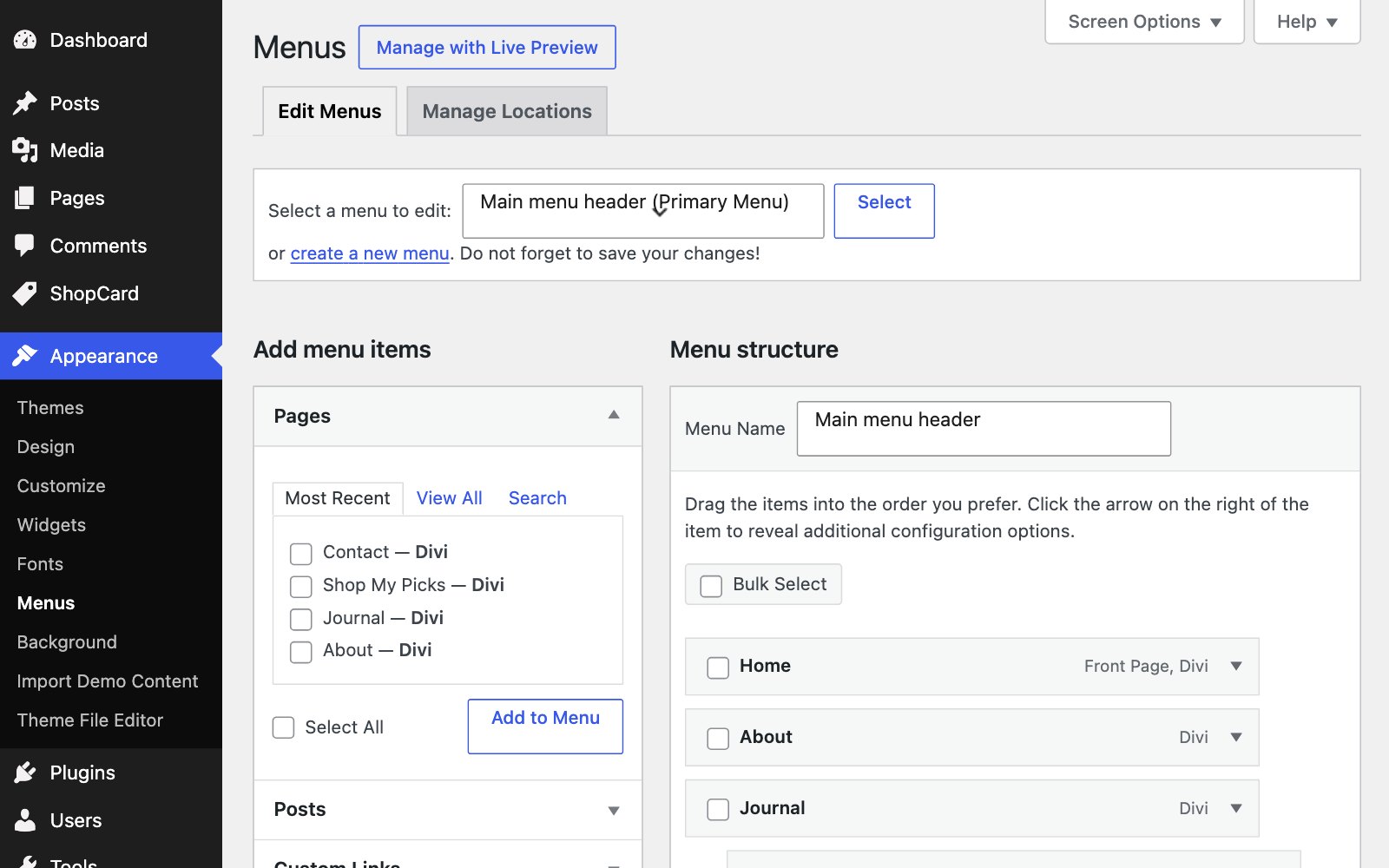
The header has two bars. The top bar carries the Top bar categories menu, your social icons and The Shop button. The main bar below carries the Romy logo, the Main menu header menu and the search icon, and stays at the top of the screen as the reader scrolls - set in the section’s Sticky options, so it can be switched off there.
The logo is an Image module showing romy-logo.svg: swap the picture for your own logo. Both menus are ordinary WordPress menus under Appearance › Menus, and each Menu module names the menu it shows in its settings.
THE HEADER
The Shop button and the social icons
The Shop button at the right of the top bar links to Shop My Picks; change its text or link in its settings. The social icons in the header and footer - Instagram, Facebook, Pinterest and TikTok - need your own profile links: click into each network inside the Social Media Follow module, and delete any network you do not use.
The Journal item in the main menu opens a dropdown of the four categories. Its position is set in the child theme, so renaming a category is safe.
THE FOOTER
Newsletter, links and the small print
The default footer opens with the newsletter band. Below it sit the Romy logo, a short description and your social icons, beside two columns of links: The Journal, with the categories, and Romy, with the pages. A Follow along strip of six photos comes next, and a slim bar at the very bottom carries the copyright line, the Privacy Policy link and Back to top.
Everything is ordinary text or image modules, so you edit it by clicking into the footer layout. Replace the description, which describes the demo, and the name in the copyright line with your own.
THE POSTS
Related posts never repeat the one you are on
“You might also like” under each post shows three of the newest posts and leaves out the one being read, so readers are always offered something new.
THE POSTS
Categories and search each have their own template
Category pages and search results look alike but are separate templates, so you can change one without the other. A category page’s heading and the line under it come from the category itself: edit the name and description under Posts › Categories.
Next