
REFERENCE
ShopCard and Shop My Picks
How the product cards in Romy are put together.
Every product card in Romy - on Shop My Picks, on the home page and on About - comes from the ShopCard plugin, which is included with Romy. You write each product once as a ShopCard item, group items into collections, and place either on any page with a ShopCard module. Change an item and every card showing it updates.
FIRST
Install the ShopCard plugin
Your download includes shopcard.zip alongside the theme. Install it the usual way, under Plugins › Add New Plugin › Upload Plugin, and activate it, ideally before the demo import. Romy’s presets for the ShopCard Item and ShopCard Collection modules give the cards their look, so there is nothing to set up.
WITHOUT THE PLUGIN
The pages still open, but wherever a product card should be there is a gap. Install and activate the plugin and the cards appear.
SHOPCARD HAS ITS OWN GUIDE
Everything about the plugin itself - every field on an item, the link options, the disclosure, the shortcode and the module settings - is in ShopCard - Getting Started. This article covers how the cards sit inside Romy.
SHOP MY PICKS
The page, top to bottom
THE SHOP PAGE, IN ORDER
Header — Things I truly love, a short introduction, jump links to the sections below and the affiliate disclosure.
Currently loving — A tall framed photo beside a single ShopCard item shown without its image - a good place for the one thing you are recommending this month.
The wardrobe edit — A collection of four items, four across on a computer, two on a tablet and one on a phone.
Little luxuries — Two single items beside a short introduction.
At home — A collection of three, with the descriptions switched off in the module.
Desk & stationery — A collection of three in its most minimal form, with no retailer and no description.
Home and About — Shop my Picks on the home page shows two items and a collection, and About ends with a collection. Choose a different item or collection in each module’s settings.
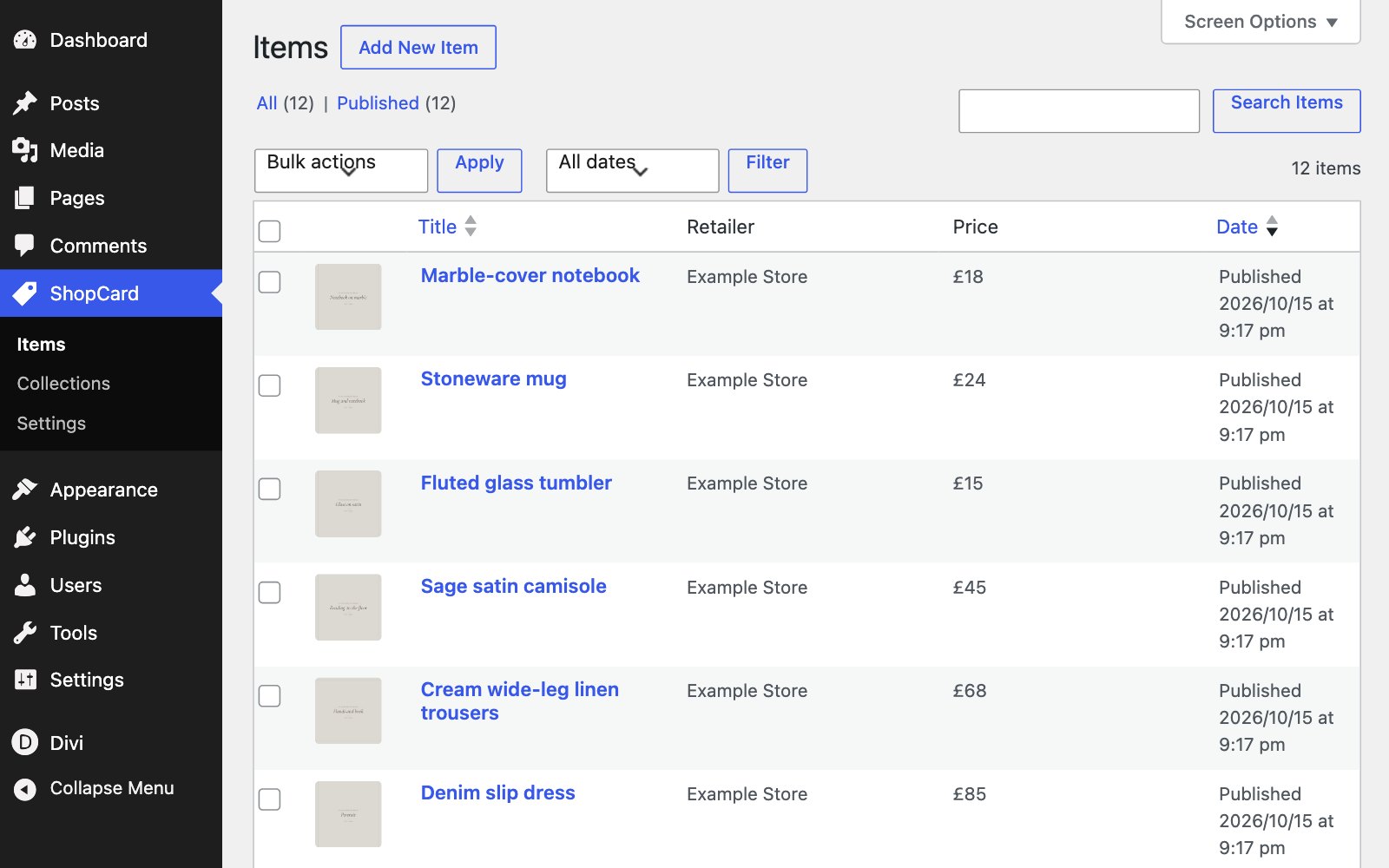
One item, many places — The demo reuses items - the stoneware mug sits in two collections - so editing an item once under ShopCard › Items updates every card that shows it.
ADDING YOUR OWN PICKS
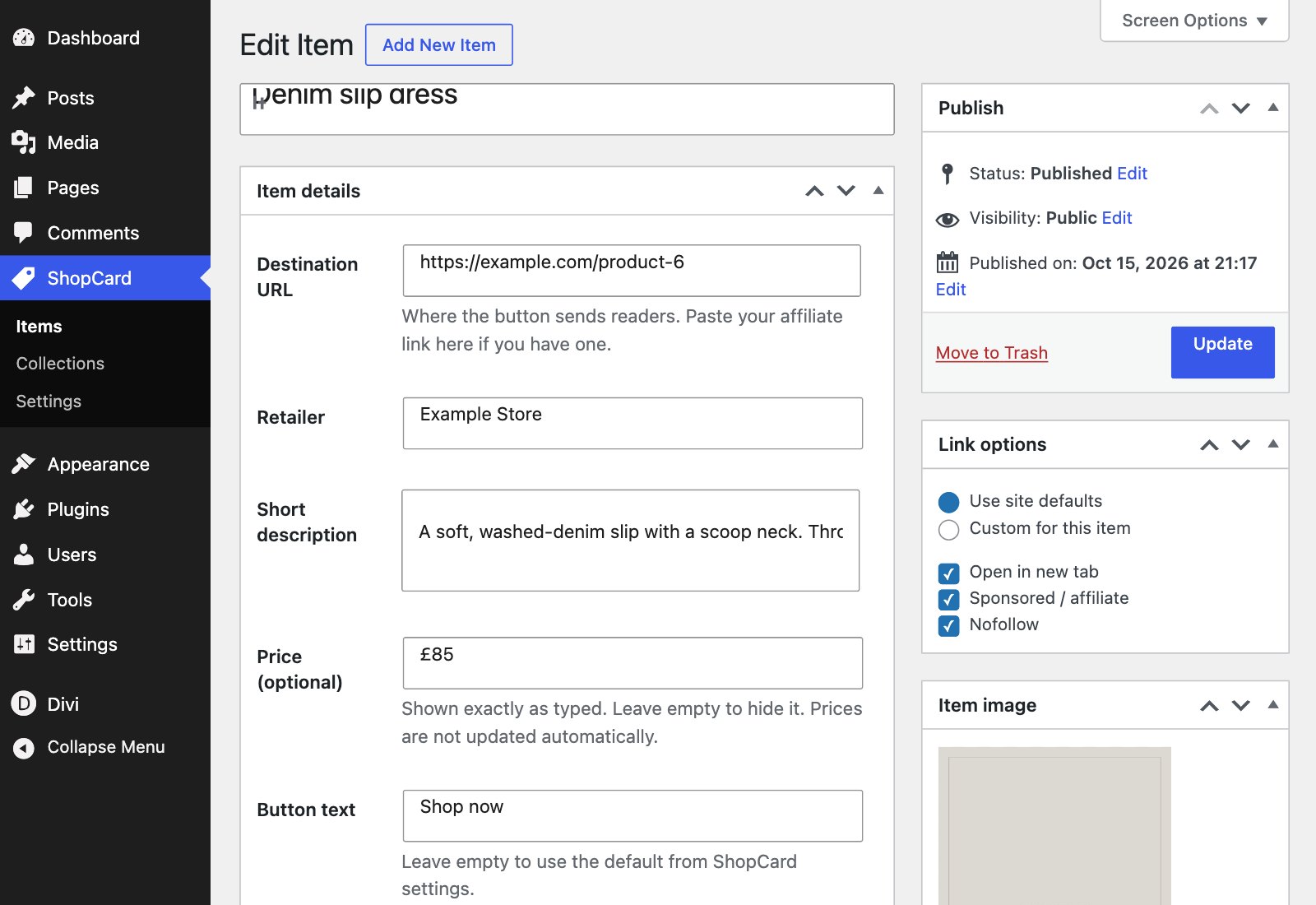
Start from an item
Go to ShopCard › Items and open one of the demo picks, or click Add New Item. Fill in the destination URL - your product or affiliate link - the retailer, a short description, an optional price and, if you like, button text of its own. Leave the button text empty to use the default from ShopCard › Settings.
Once your own items are in place, replace or delete the demo ones, so no card links to example.com.
ADDING YOUR OWN PICKS
The item image is the card’s photo
Set it in the Item image box on the right of the item. Cards show it as an upright 4:5, so keep the product in the middle of the frame. Around 1000 pixels on the longer side is plenty. Use your own photograph, or the product image your affiliate programme provides.
ADDING YOUR OWN PICKS
Collections
A collection is an ordered set of items. Create one under ShopCard › Collections, add your items and drag them into order, then place it on a page with the ShopCard Collection module. The four demo collections - The desk edit, The wardrobe edit, At home and Desk and stationery - show the patterns you can copy.
ADDING YOUR OWN PICKS
Link options
Every item follows the site defaults under ShopCard › Settings - open in a new tab, marked sponsored and nofollow - unless you choose Custom for this item in its Link options box. Keep sponsored on for affiliate links: it is what Google asks for.
Next