
STEP TWO OF FOUR
Importing the demo content
One click, and the whole site arrives.
This is the step that turns a blank WordPress into the Kiara demo. It takes about a minute, and it only adds - nothing you already have is deleted or overwritten. It is safest on a brand new site, where the result matches the demo exactly.
WHAT GETS ADDED
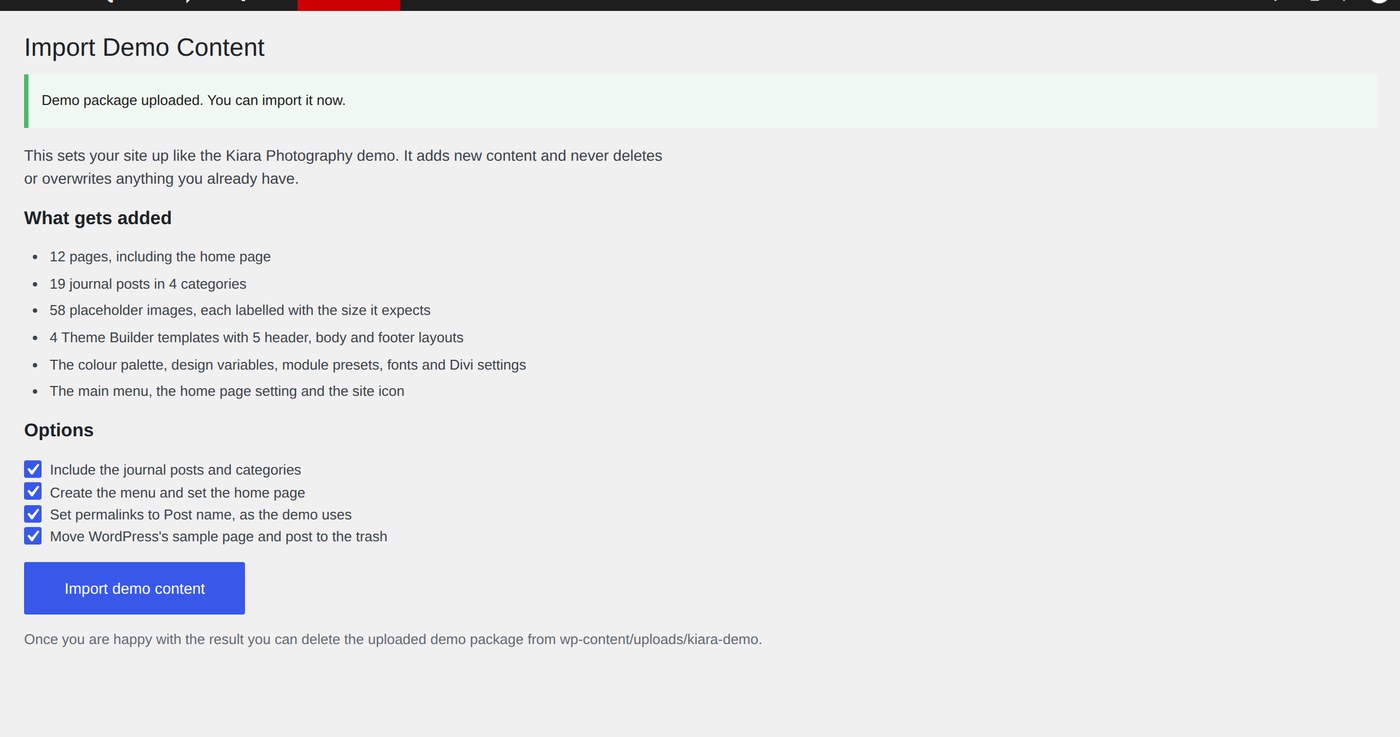
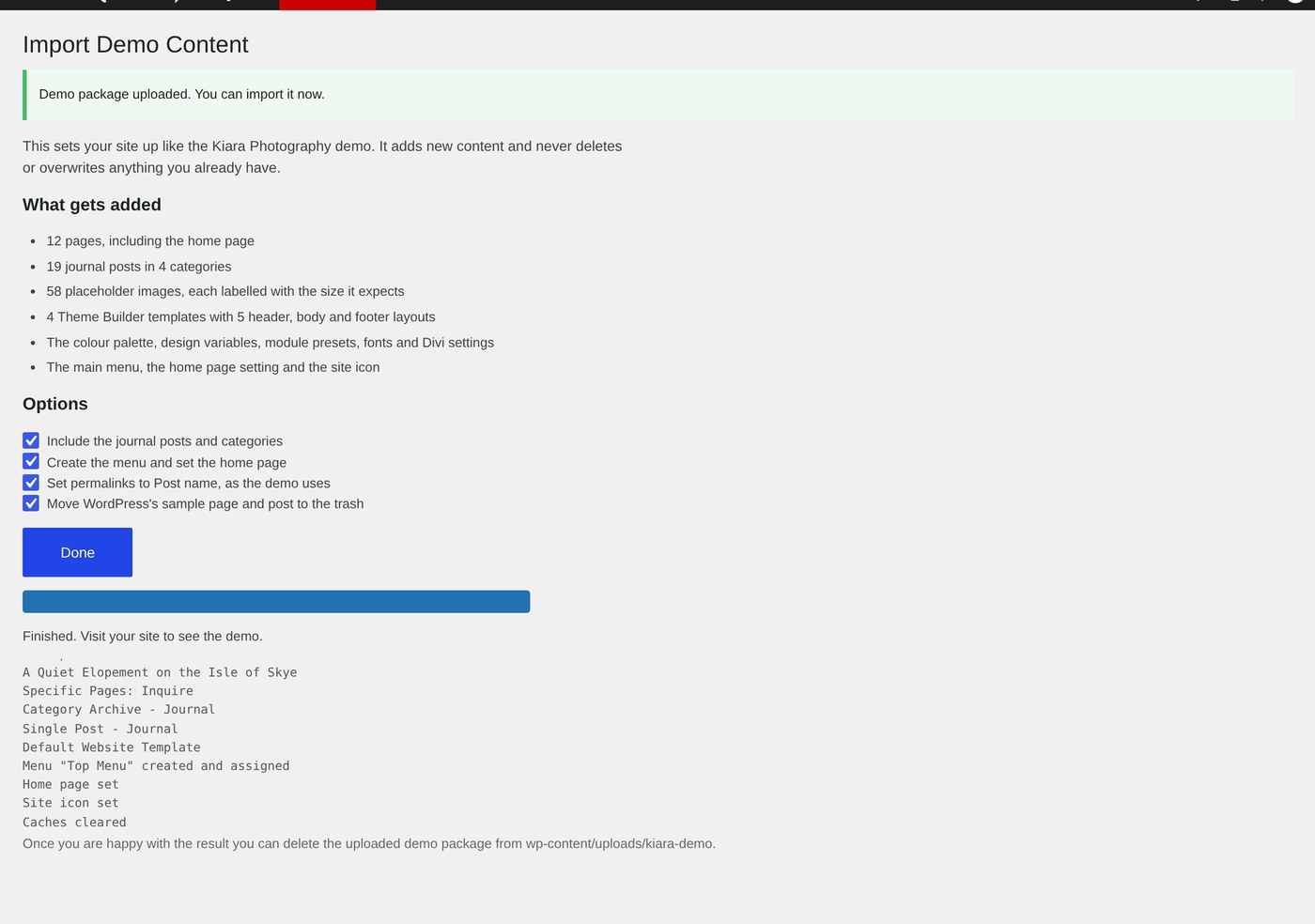
Everything in the demo
Pages — 12, including the home page
Journal posts — 19 posts in 4 categories
Images — 58 placeholders, each labeled with the size it expects
Theme Builder — 4 templates, with the header and footer layouts
Design — the color palette, design variables, module presets and Divi theme options
Site setup — the main menu, the home page setting and the site icon
STEP ONE
Open the importer
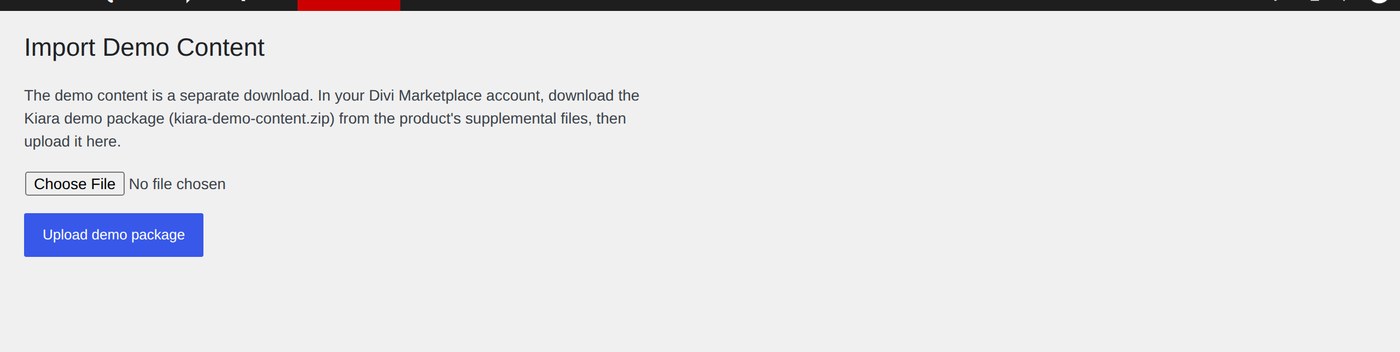
Go to Appearance › Import Demo Content. The screen only appears while Kiara is the active theme.
STEP TWO
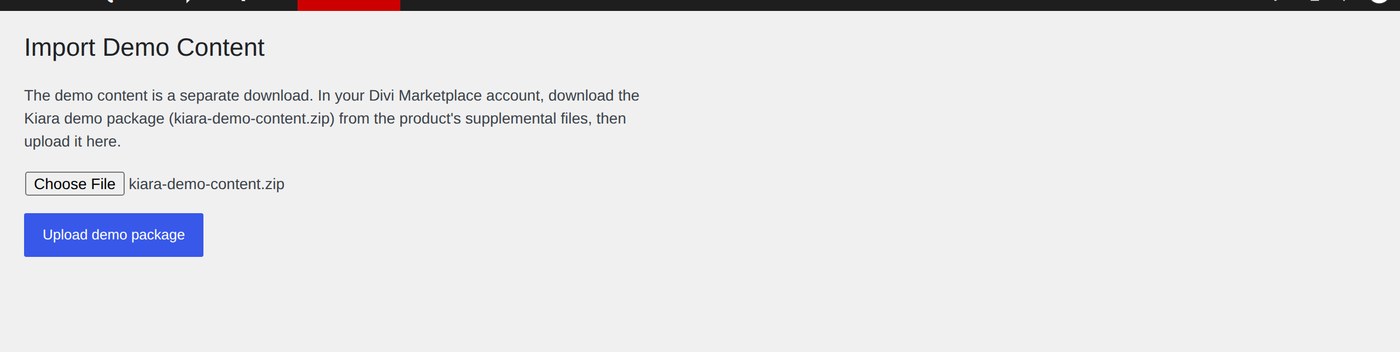
Upload the package
Choose kiara-demo-content.zip - the second file from your marketplace account - and upload it zipped, exactly as you downloaded it.
STEP THREE
Choose what you want
Four options, all on by default:
Include the journal posts and categories - nineteen sample posts. Turn this off if you would rather start your blog from scratch.
Create the menu and set the home page - builds the main menu and makes Home your front page.
Set permalinks to Post name - the address format the demo uses.
Move WordPress's sample page and post to the trash - otherwise Hello world! sits in your journal beside the demo posts.
Then click Import demo content and confirm.
STEP FOUR
Watch it run
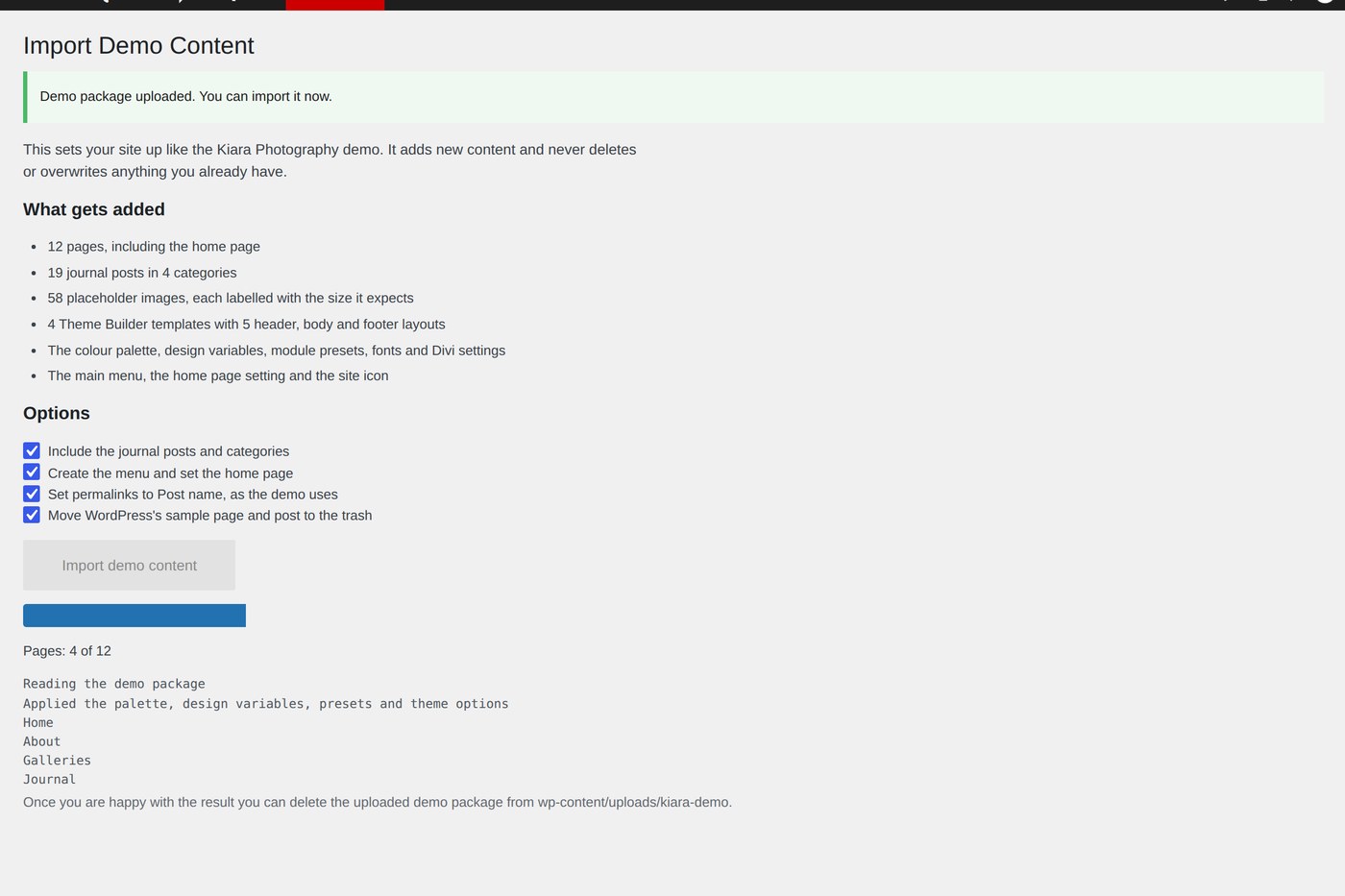
A progress bar shows each stage - images, colors and settings, pages, journal posts, Theme Builder, menu - and the log lists what it has done. Leave the tab open until it finishes.
STEP FIVE
Check the result
When the log says it has finished, visit your site. It should look like the demo, with labeled placeholders where the photographs go.
AFTERWARDS
Three things to know
HOUSEKEEPING
You can delete the uploaded package from wp-content/uploads/kiara-demo - it is not needed again. The Inquire page's form sends to your site's admin email address until you change it, and the footer newsletter sign-up is not connected to anything yet. Both are covered in the inquiry form and newsletter.
DO NOT RUN THE IMPORT TWICE
A second run creates a second copy of every page and post. If something went wrong, open a support ticket rather than re-importing.
Next