
STEP ONE OF FOUR
Installing the child theme
The quickest part of the whole setup.
Divi must be installed and active before you begin - Romy is a child theme, so it cannot run on its own. If Divi is already running, this takes about five minutes, including the ShopCard plugin.
STEP ONE
Download the files
Your Marketplace account holds three files. romy-fashion-lifestyle.zip is the theme, romy-demo-content.zip is the demo content for step two, and shopcard.zip is the ShopCard plugin. Keep them zipped: WordPress wants the zip file, not the folder inside it.
STEP TWO
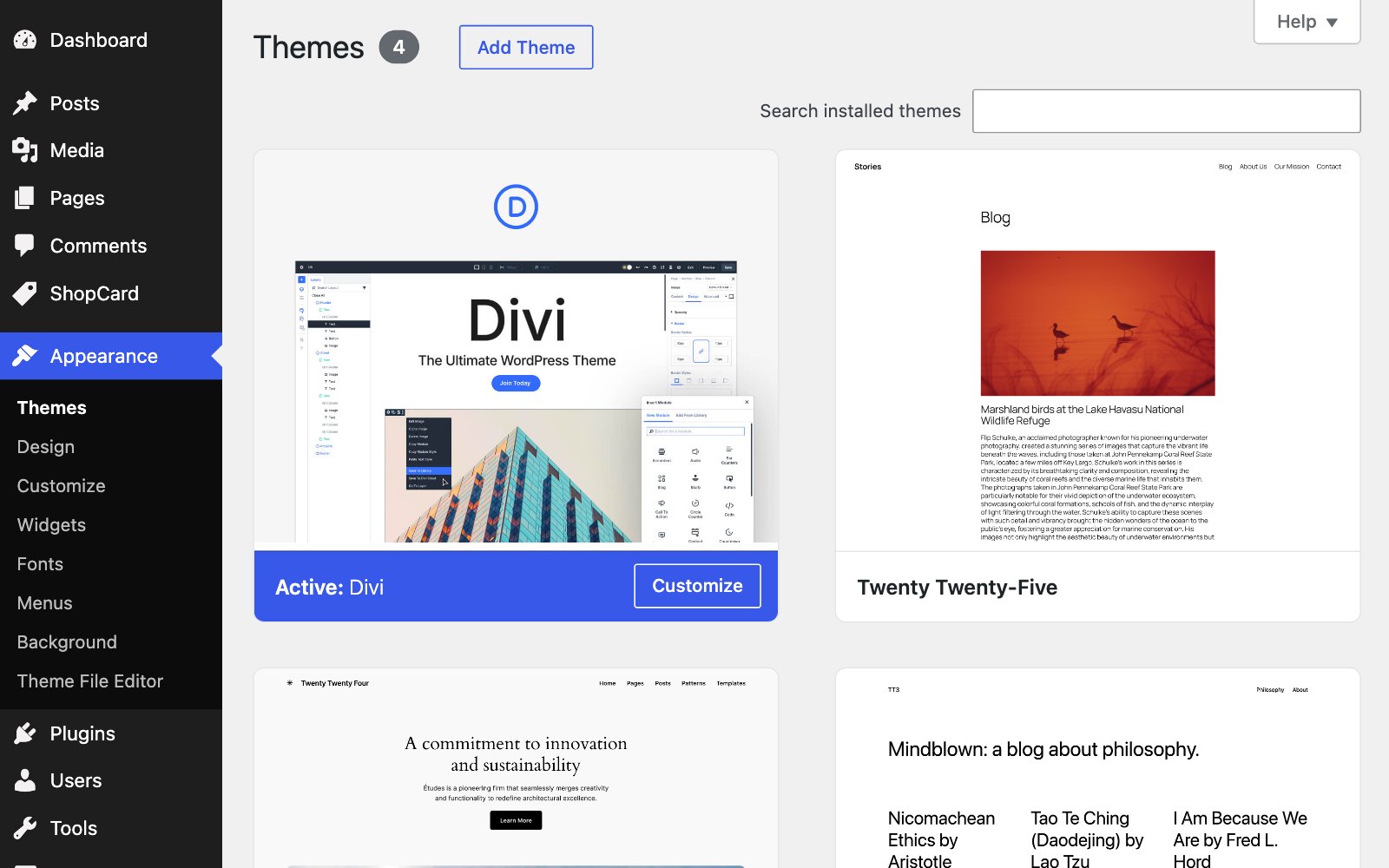
Upload and install the theme
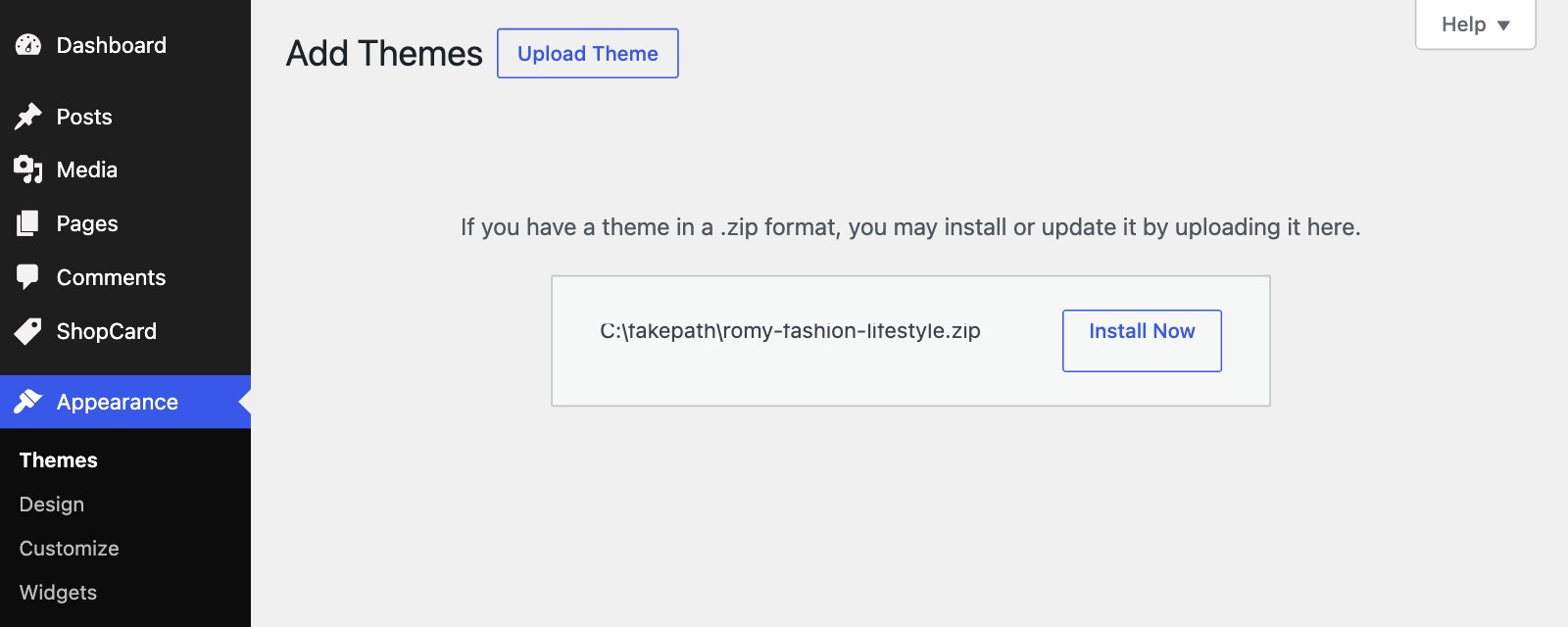
In WordPress, go to Appearance › Themes, click Add New Theme, then Upload Theme. Choose romy-fashion-lifestyle.zip and click Install Now.
STEP THREE
Activate
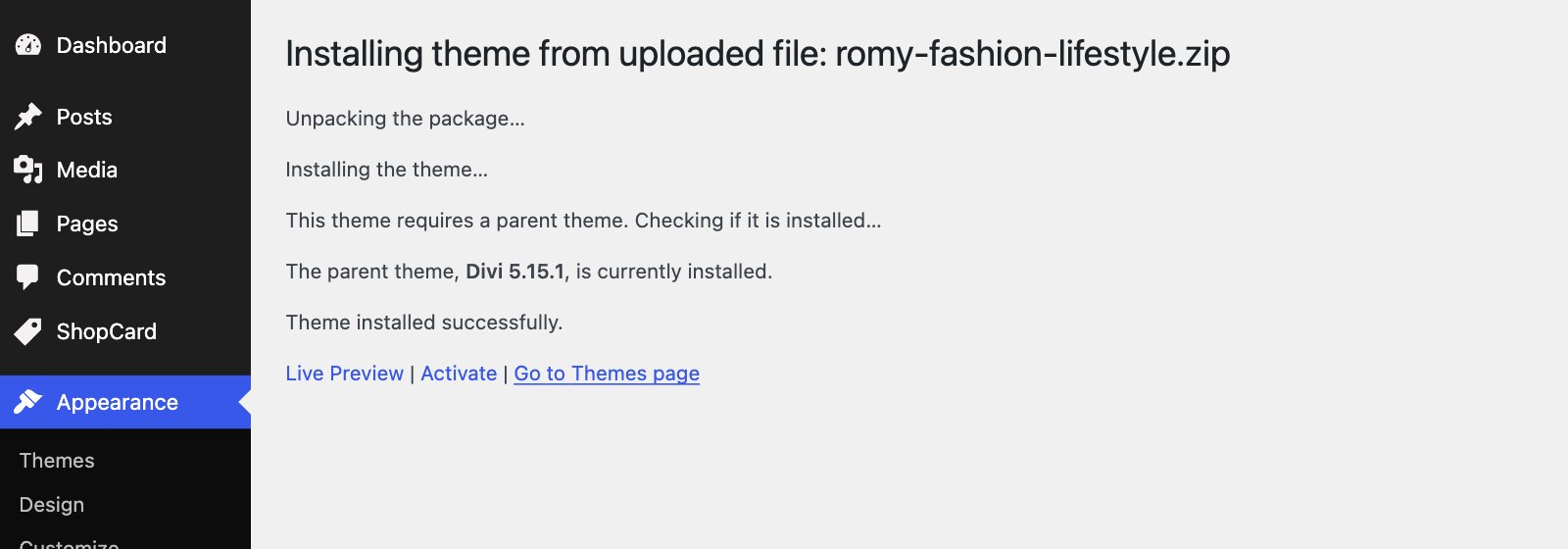
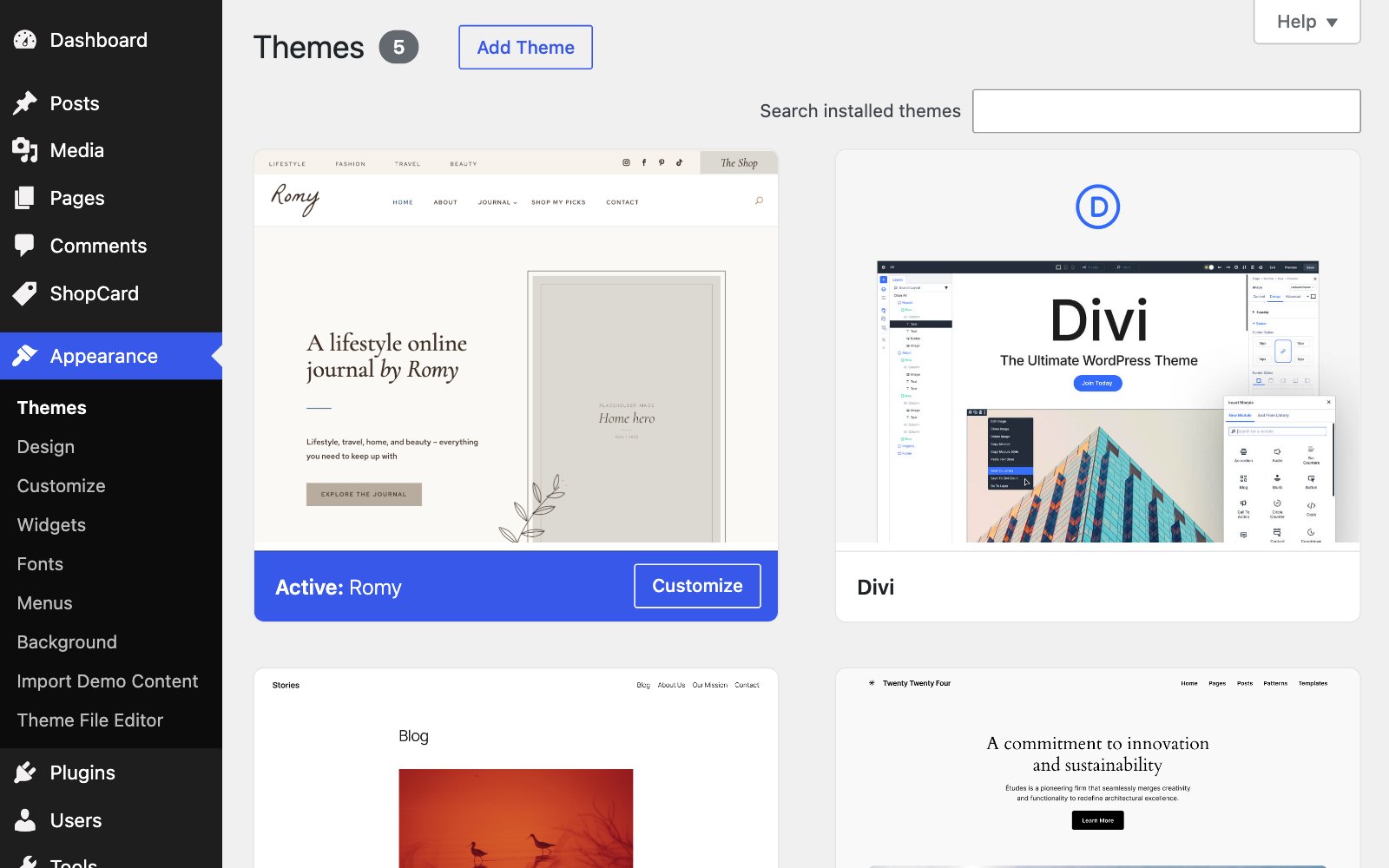
When WordPress says the theme installed successfully, click Activate. A new screen appears under Appearance - Import Demo Content - which you will use in the next step.
STEP FOUR
Install the ShopCard plugin
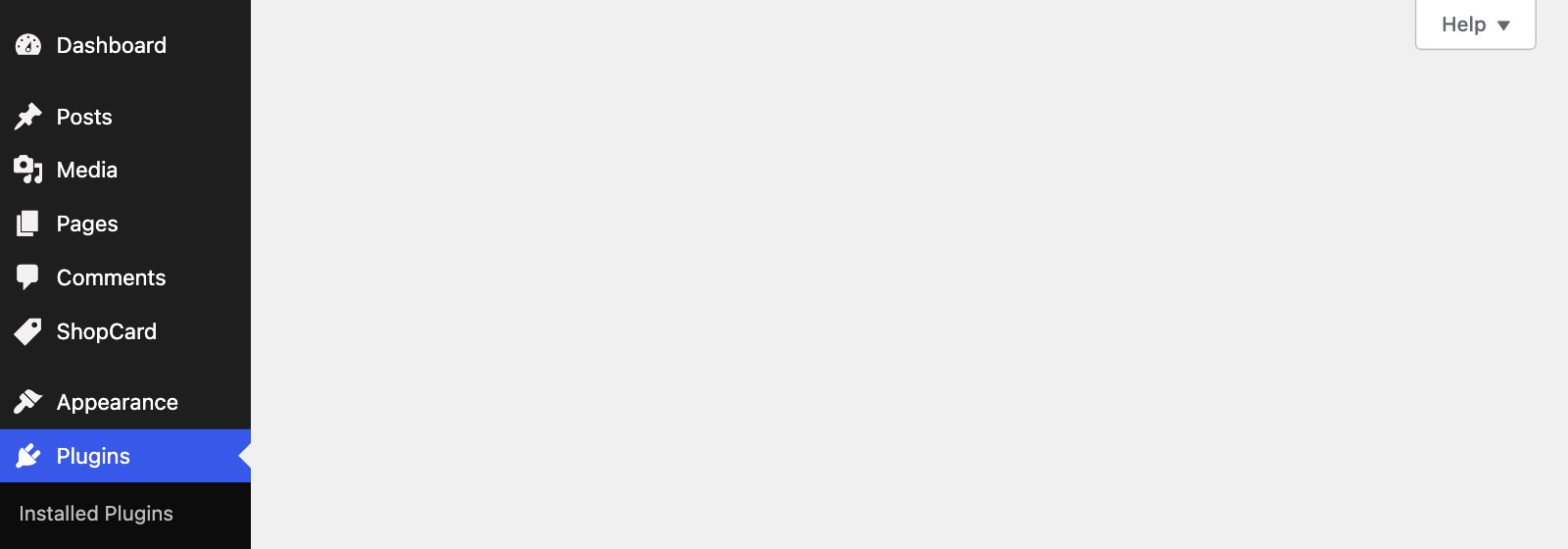
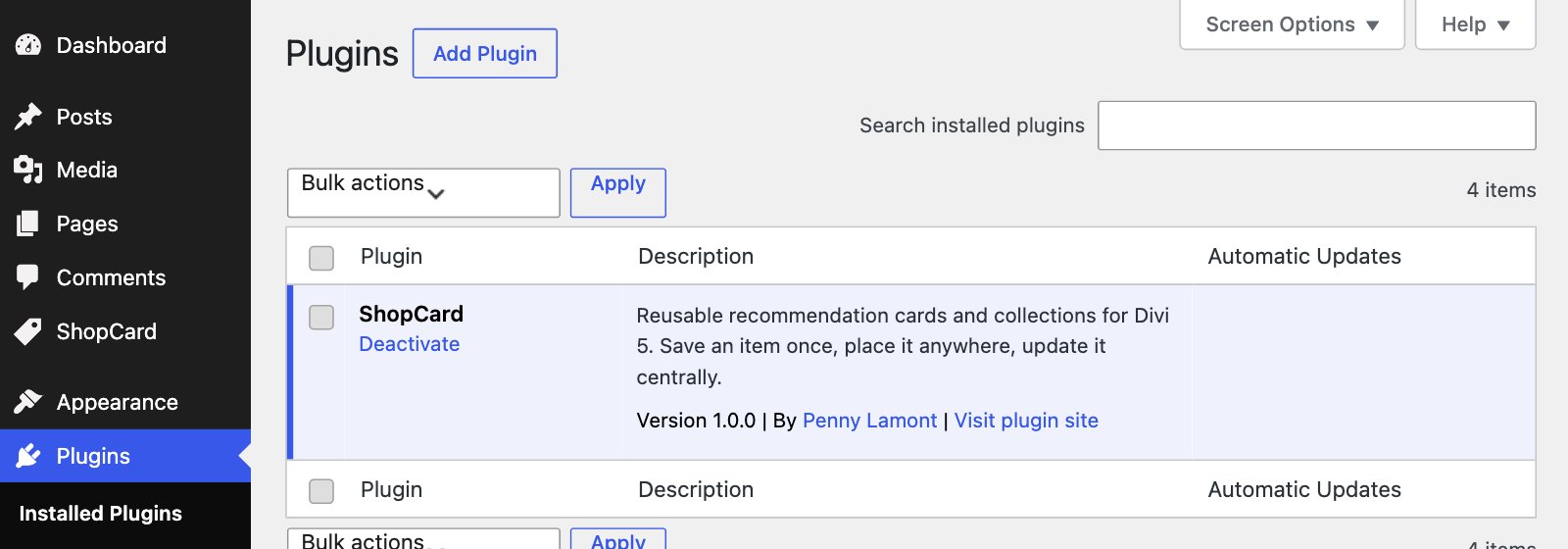
Go to Plugins › Add New Plugin, click Upload Plugin, choose shopcard.zip, install it and click Activate. It adds a ShopCard menu to the admin, where your product picks and collections live. Do this before the import, so the sample picks arrive ready to use.
WHAT TO EXPECT
Your site will look plain
That is exactly right. A child theme on its own carries the styling, not the content - the pages, the blog posts, the ShopCard picks, the templates and the menus all arrive in the next step, with the demo import.
IF WORDPRESS SAYS THE PARENT THEME IS MISSING
Divi is not installed under the exact name Divi. Download Divi again from your Elegant Themes account, install it, and try Romy once more. Renamed or duplicated Divi folders are the usual cause.
ROMY NEEDS DIVI 5
Every page in Romy is built with Divi 5 blocks, so Divi 5 has to be installed and active. On Divi 4 the pages will not open in the builder.
Next